HeyGen vs Synthesia comes down to one question. Do you want a talking presenter for social videos? Or a script-and-scenes editor for training videos? HeyGen is the faster pick for creators. Synthesia is the calmer pick for teams. We tested both hands-on on 12 Nov 2026, on their free plans, with the same script, and checked both pricing pages the same day.
Short answer: our verdict in 3 lines
Pick HeyGen if you make YouTube, TikTok or sales videos and want a presenter, voice and engine on one screen.
Pick Synthesia if you turn documents into training or how-to videos and want a cleaner free result: our free test gave a 16-second clip with only a small corner logo.
Skip both if you want no face at all: a text-to-video tool with stock clips, such as Pictory, fits that job better.
Before you choose: what you need
- Budget: $0 to test both. To publish without a watermark, plan $18 to $29 a month.
- Skill level: none for the editor. You only need a short script; about 150 words make one minute of speech.
- What you want to make: a social clip, a training lesson or a dubbed version of an old video. New to AI video? Read our guide to AI video generator types first.
No time to read it all? The quick pick box below gives you the answer in 30 seconds.
Disclosure: the HeyGen, Synthesia and Pictory links in this post are affiliate links. If you buy, we may earn a commission at no extra cost to you. We paid nothing to test, we used the free plans, and the tool that fits you wins here, even when it pays us less. See how we pick on our recommended tools page.
Quick pick: HeyGen, Synthesia or neither?
- Choose HeyGen for a presenter that reads your script in social videos. Free: up to 3 watermarked videos a month, up to 1 minute each. Creator: $29 a month, or $24 a month billed yearly. Try HeyGen free · our HeyGen tutorial
- Choose Synthesia for training, onboarding and explainer videos built from a document. Free: 10 minutes a month, watermarked, no download. Starter: $29 a month ($14 the first month), or $18 a month billed yearly ($216). Try Synthesia free
- Choose neither if you want faceless videos from stock clips: Pictory turns a script or blog post into a video, but it has no avatar. Read our Pictory review.
Our opinion: beginners who post on social media should start with HeyGen. Teams that train staff should start with Synthesia. We tested both free plans and checked both official pricing pages on 12 Nov 2026.
Be careful: free videos from both tools carry a watermark. HeyGen also says its free output is for personal, non-commercial use only, and Synthesia’s free plan has no MP4 download.
In this post
- How we tested HeyGen and Synthesia
- The one difference that matters: presenter first or script first
- HeyGen hands-on: what happened in our test
- Synthesia hands-on: what happened in our test
- Scores: HeyGen vs Synthesia out of 10
- HeyGen vs Synthesia side by side (prices checked 12 Nov 2026)
- Which tool wins for your job: 4 real cases
- What each tool does badly, and who should not buy it
- Which plan to buy (the cheapest one that removes the main limit)
- Want neither? Two honest alternatives
- Can these tools pay for themselves?
- Our call
Prefer to watch? Here is our own video of the same test, with both tools side by side:

How we tested HeyGen and Synthesia
Most “HeyGen vs Synthesia” pages copy the two pricing tables. Instead, we gave both tools the same small job that a beginner really has. The task was a short English explainer with a stock presenter, about how to turn a blog post into a video.
Here is the exact script we used. It has 42 words:
“Hi! In the next 30 seconds you will learn how to turn a blog post into a short video. First, paste your main idea. Next, pick a voice and an avatar. Finally, press generate and share it. It really is that simple.”
| What | Our setup |
|---|---|
| Date | 12 Nov 2026 |
| HeyGen plan | Free plan, our own account, Apps > Single scene |
| Synthesia plan | Free Basic plan, our own account, Create > Start from blank |
| What we measured | Setup time, render time, credits used, length of the result, watermark, ease of use, cost per finished minute |
So, to be clear: every result below is ours, from the same script, the same day and the free plan of each tool. Where a fact comes from a pricing page instead, we say so. Jump to: scores · prices side by side · which tool for your job.
Our numbers at a glance
| Measure | HeyGen (free plan) | Synthesia (free Basic plan) |
|---|---|---|
| Setup (script, avatar, voice) | About 2.5 minutes | About 3 minutes 20 seconds |
| Render time | About 11 minutes | About 6 minutes |
| First video ready | About 13.5 minutes after we started | About 9.5 minutes after we started |
| Credits | None shown: usage history listed “-” in the credits column | No credit prompt before Generate; the billing page then showed 569 of 500 credits used |
| Result | A 13-second clip at 720p | A 16-second clip; the app player streamed it at 1920 x 1080 |
| Watermark | Yes, “HeyGen” marks across the frame | Yes, a “synthesia” logo in the bottom-right corner |
| Download on free | Share link only | No: Download opens a “Starter+” upgrade window |
One honest surprise: the script says “30 seconds”, yet the clips lasted only 13 seconds (HeyGen) and 16 seconds (Synthesia). That is because 42 words is a short script. Synthesia’s voice simply spoke a little slower. As a rule, plan about 150 words for one minute of video.
The one difference that matters: presenter first or script first
Both tools make a digital person read your text. However, they start from opposite ends. HeyGen starts from the presenter. You pick a person, pick a look, then choose how the AI should animate them. Synthesia starts from the script. You write paragraphs in scenes, and each paragraph can have its own voice.
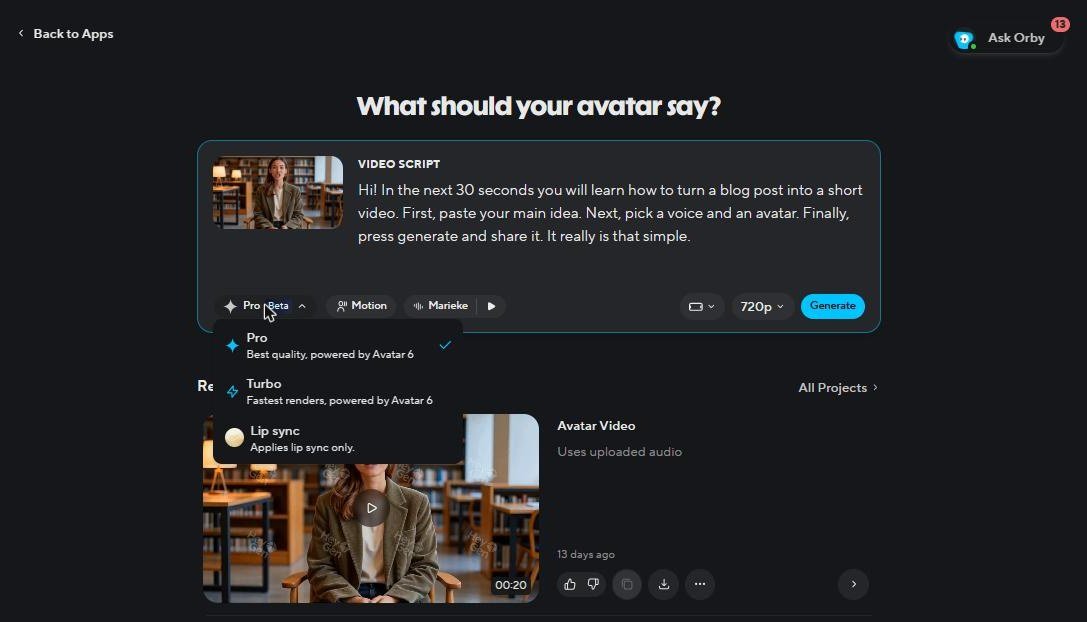
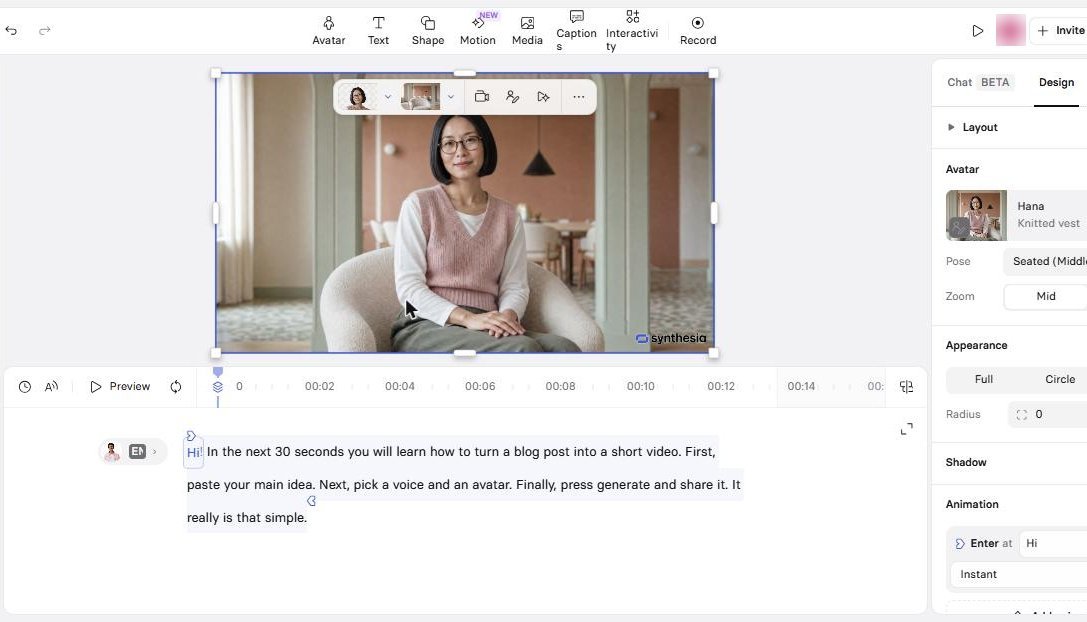
On the left, HeyGen asks you to choose an engine: Pro for the best quality, Turbo for the fastest render, or Lip sync only. On the right, our Synthesia test shows a script box where a speaker pill sits next to each paragraph, under a slide-like scene. That small detail tells you who each tool is for.
HeyGen hands-on: what happened in our test
We opened HeyGen in the browser on the free plan. Then we went to Apps and chose Single scene. That tool keeps everything on one page, which is good news for a beginner.
Step 1: paste the script and set the presenter
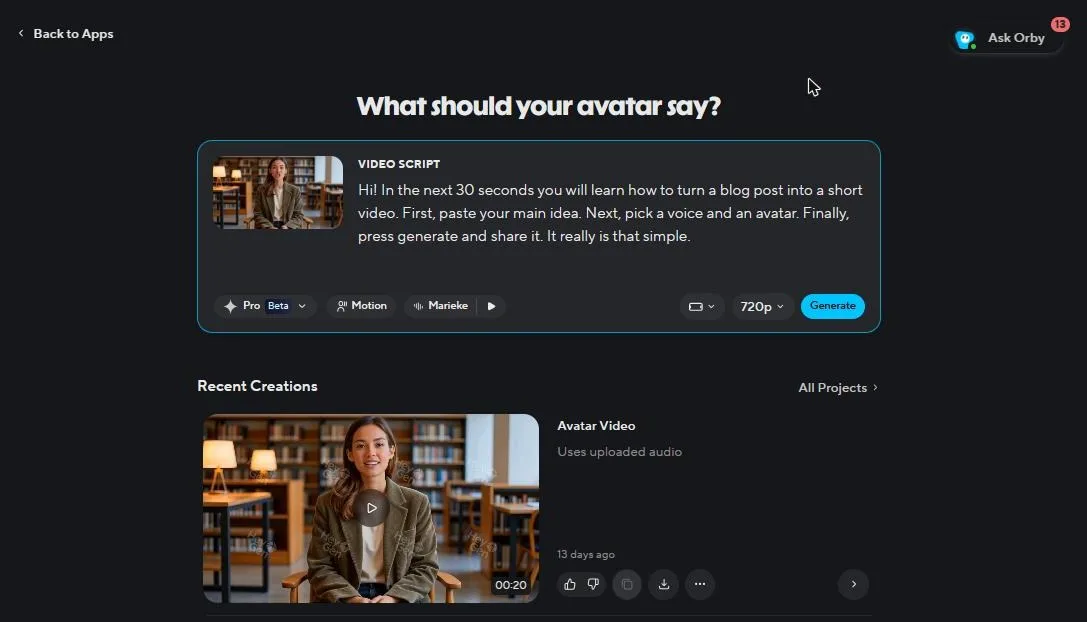
The script box, avatar, voice, 720p setting and Generate button all sit on one screen. As a result, setup took us about 2.5 minutes. However, there is one small trap: our first keystrokes went to the page, not into the box. So click inside the script box before you type or paste.
Step 2: choose a stock avatar and a look
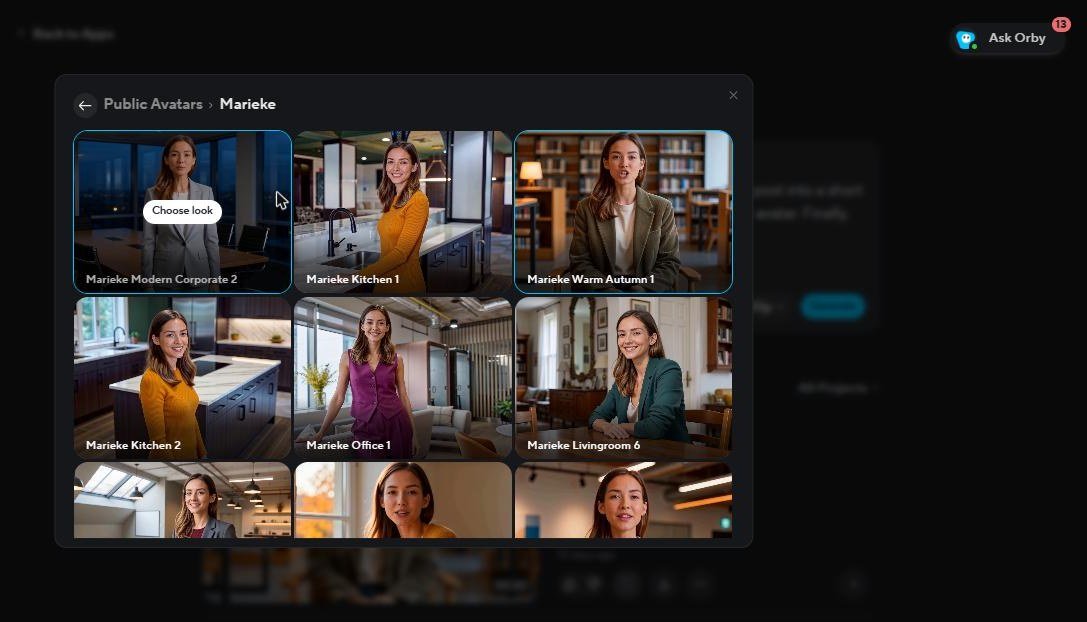
First, HeyGen groups its stock presenters by person, then by “look”. For example, one presenter comes in office, kitchen and library settings. Then we picked the public avatar Marieke with the look “Warm Autumn 1”, plus her matching voice. Because the voice is pre-matched, you avoid a common beginner mistake: a voice that does not fit the face.
Step 3: generate and wait
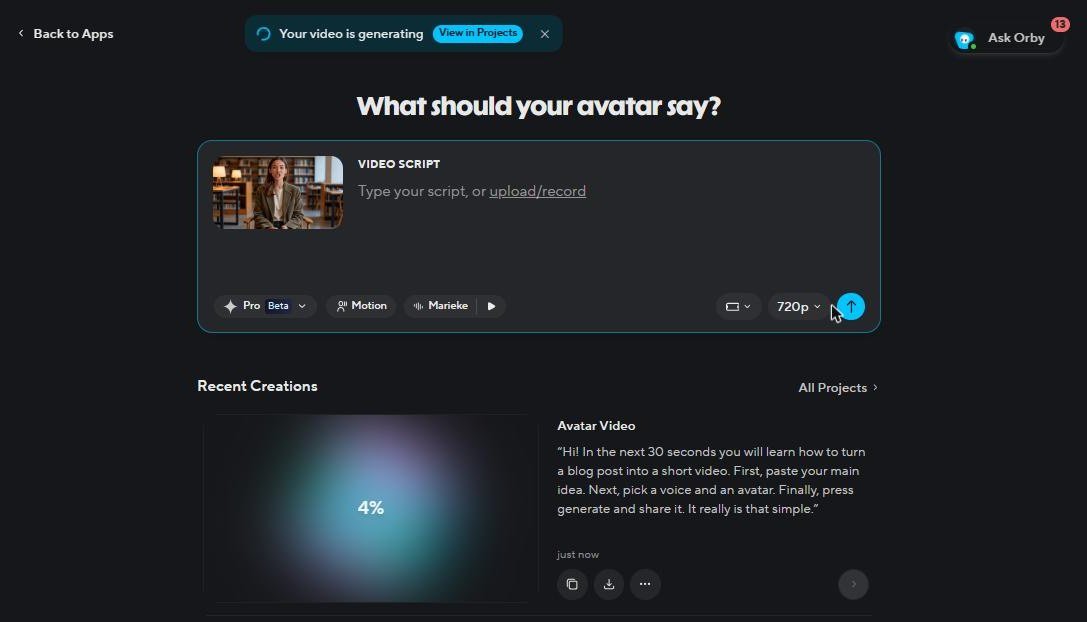
After we pressed Generate, a progress screen said “Your video is generating”. No credit prompt appeared. Later, the usage history listed the video with “-” in the credits column. In other words, free videos come from a small monthly quota, not from credits.
On the other hand, the wait was the weak part. Rendering took about 11 minutes for a 13-second clip. That is fine for one test. Still, it would feel slow if you made many short videos in a day on the free plan.
Step 4: check the result and the watermark
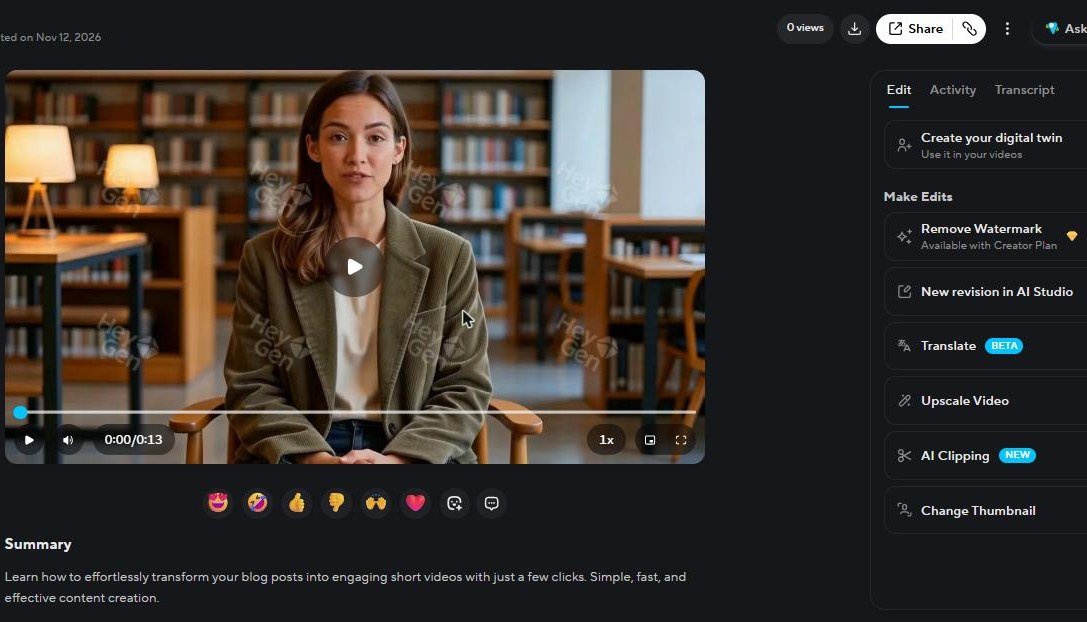
The finished clip played cleanly, and the voice matched the presenter. Even so, “HeyGen” watermarks ran across the frame. The side panel said “Remove Watermark – Available with Creator Plan”. Therefore, treat free HeyGen videos as previews, not as videos to publish.
What went well and what went wrong
| Went well | Went wrong |
|---|---|
| One screen for script, avatar, voice, resolution and Generate | First keystrokes did not reach the script box |
| Stock voice already matched to the avatar | About 11 minutes of render time for 13 seconds |
| Clear engine choice (Pro, Turbo, Lip sync only) | Watermarks across the whole frame on free |
| No credits taken on the free plan | 720p only on free; 1080p starts on Creator |
Want to see a longer HeyGen project from start to finish? HeyGen’s own channel has a 14-minute tutorial, published in February 2026:

For a full real project, see our step-by-step HeyGen video resume tutorial. It shows the same editor used for a job search. Or try HeyGen free with our script (affiliate link).
Synthesia hands-on: what happened in our test
We opened Synthesia in the browser on the free Basic plan, then chose Create and Start from blank. The editor opens with a template scene, a presenter and a sample script. So the first job is to replace that text.
Step 1: paste the script and swap the presenter
We pasted the same 42-word script into the script box. Next, we swapped the template presenter for a stock avatar. However, there is one trap here: the speaker pill next to the script still showed the old presenter. So we had to switch the speaker to the new avatar by hand. Check that pill before you generate, or the wrong voice will read your text. (Our screenshot of this step is the right-hand image in the comparison above.)
Step 2: choose a stock avatar, an outfit and a space
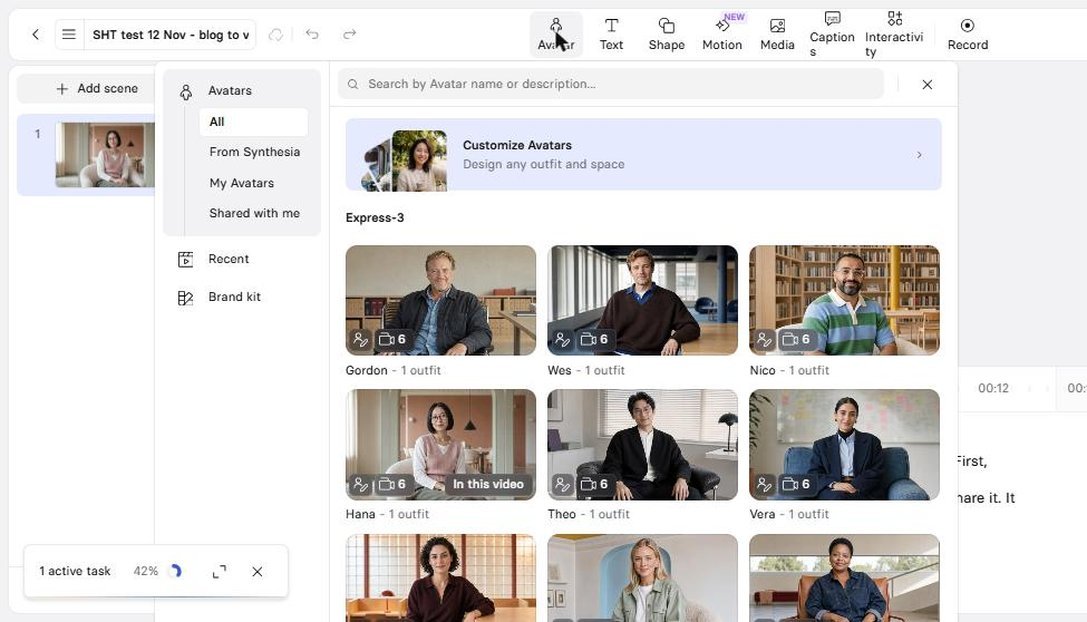
First, Synthesia lists its stock presenters as people. Then you pick an outfit, and finally a “space”, which is the background. We chose Hana in the “Cozy Armchair Interior” space. The pricing page lists 9 AI avatars on the free plan, so the choice is smaller than on paid plans.
Step 3: pick the voice
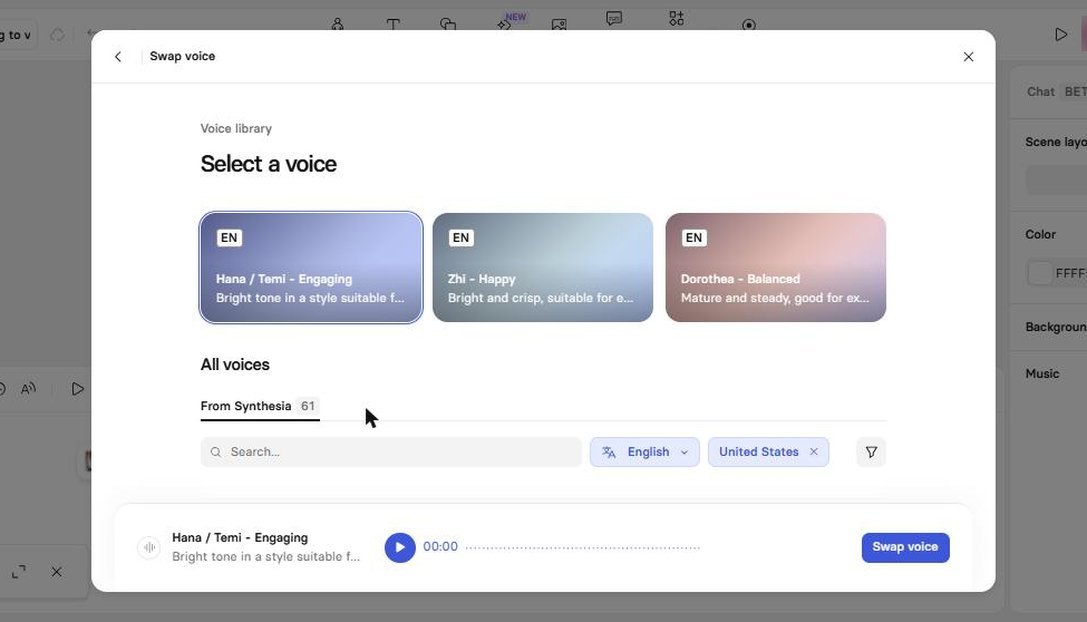
Like HeyGen, Synthesia suggested a voice that matches the avatar: “Hana / Temi – Engaging”. The library listed 61 Synthesia voices for US English. You can also change the speed and play a preview. In other words, a beginner does not need to search for a voice at all.
Step 4: generate and wait
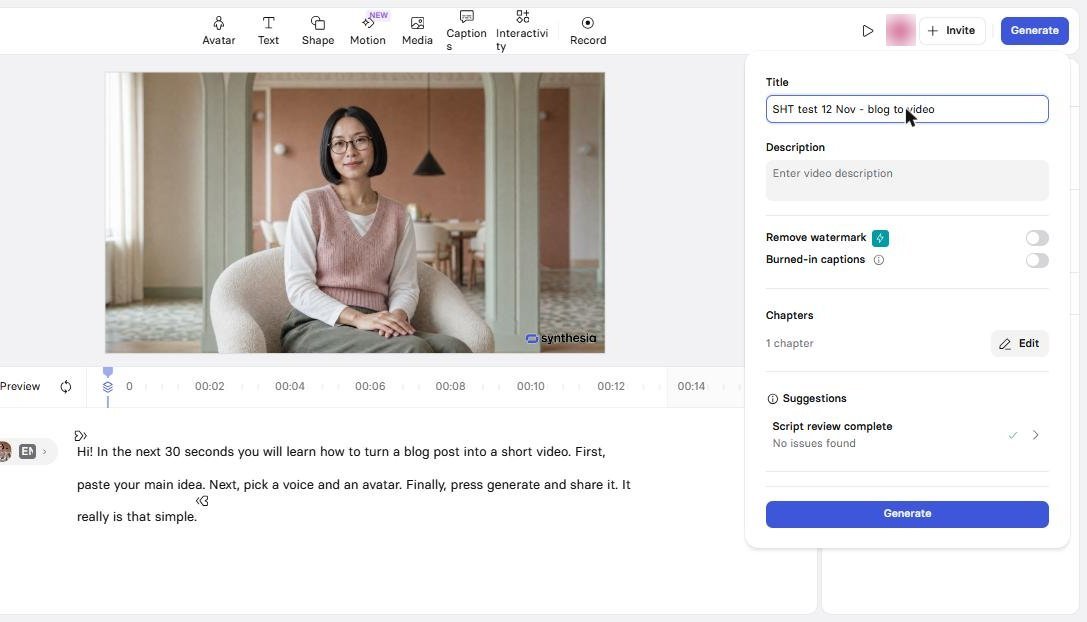
Before rendering, Synthesia shows a Generate panel. It has a title, a “Remove watermark” switch with a paid badge, burned-in captions and an automatic script review (“No issues found”). No credit prompt appeared. Then the video went from “Queued” to “Preparing” and was ready about 6 minutes later. That is roughly half of HeyGen’s render time in our test.
Step 5: check the result and the limits
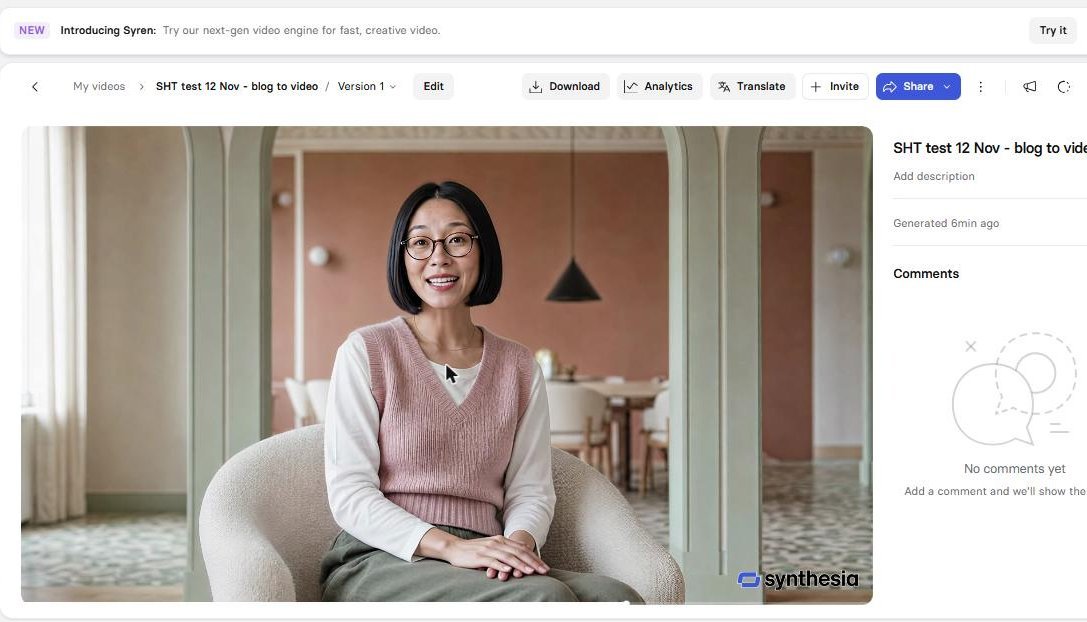
The finished clip lasted 16 seconds, and the lips matched the voice well. Unlike HeyGen, the watermark is a small “synthesia” logo in one corner, not marks across the frame. Still, the free plan has two hard limits. First, the Download button opened a “Starter+” window, so free videos cannot be saved as MP4 files. Second, sharing works by public link or embed code, not as a file.
One more honest note about credits. Before we started, the account already said “You’ve reached your credits limit”. Even so, the render ran. Afterwards, the billing page showed 569 of 500 credits used. So expect the free 500 credits to cover only a few short tests; we cannot say what our single 16-second clip cost. The pricing page says a typical finished minute uses about 100 credits, and credits are only spent when something is generated.
What went well and what went wrong
| Went well | Went wrong |
|---|---|
| Render in about 6 minutes, versus 11 in HeyGen | Speaker pill kept the old presenter after the avatar swap |
| Small corner logo instead of a full-frame watermark | No MP4 download on the free plan |
| Voice matched to the avatar, 61 US English voices | Account already out of credits before we started; billing page showed 569 of 500 after the render |
| Script review before Generate caught nothing wrong | More panels to learn than HeyGen’s one screen |
Want a longer tour? Here is Synthesia’s own five-minute walkthrough from its official channel, published in February 2026. It shows the same editor we used:

We have no separate Synthesia review yet. Meanwhile, our AI video generators guide shows where Synthesia sits next to other video tools. Open the Synthesia free plan to try the same script yourself.
Scores: HeyGen vs Synthesia out of 10
We weighted what matters most to a beginner. Output quality counts most, because a bad clip is wasted money. Next come ease and price per finished minute. Finally, features and limits fill the rest. Every score below comes from our free-plan tests or from the pricing pages, read on 12 Nov 2026.
| Criterion (weight) | HeyGen | Synthesia | Why |
|---|---|---|---|
| Output quality (30%) | 7 | 8 | Both clips were clean. HeyGen: 720p and marks across the frame on free. Synthesia: 1080p in the player and one corner logo. |
| Ease for a beginner (20%) | 8 | 7 | HeyGen: one screen, one trap. Synthesia: more panels, and the speaker pill trap after an avatar swap. |
| Price per result (20%) | 6 | 7 | Synthesia Starter is $18 a month billed yearly and counts about 100 credits per minute. HeyGen Creator is $24 a month billed yearly, with no fixed price per minute. |
| Features (15%) | 8 | 8 | HeyGen: engine choice, 175+ languages on Creator. Synthesia: script review, paragraph voices, guests, dubbing. |
| Limits and speed (15%) | 6 | 5 | HeyGen free: 3 short videos, 11-minute render. Synthesia free: 6-minute render, but no download and 500 credits already used up. |
| Total | 7.0 / 10 | 7.2 / 10 | Weighted average of the five scores. |
So the totals are close, and the winner depends on your job. Synthesia wins on output and render speed in our test. In contrast, HeyGen wins on ease and on what the free plan lets you share. That is why the use cases below name a winner per job, not one overall winner.
HeyGen vs Synthesia side by side (prices checked 12 Nov 2026)
Every line below comes from our tests or from the official pricing page of each tool, read on 12 Nov 2026. Both vendors were running offers that day: Synthesia showed “4 months free” on Starter yearly on its site and “5 months free” inside the app, so check again before you pay.
Free plans and prices
| HeyGen | Synthesia | |
|---|---|---|
| Free plan | up to 3 videos a month, up to 1 minute each | 10 minutes of video a month, 500 credits, 9 avatars |
| Free plan watermark | Yes, across the frame (our test) | Yes, a corner logo (our test) |
| Free plan export | Share link, 720p | Public link or embed; no MP4 download (our test: “Starter+”) |
| Cheapest paid plan | Creator: $29 a month, or $24 a month billed yearly ($288, “2 months free”) | Starter: $29 a month ($14 the first month), or $18 a month billed yearly ($216) |
| What the cheapest plan gives | 600 credits, 1080p, HeyGen branding removed, 175+ languages | 1,250 credits a month (about 12 minutes), or 15,000 a year (about 150 minutes); logo removed, downloads, 125+ avatars, 3 guests |
| Next plan | Pro: $49 a month, or $41 a month billed yearly ($488); 1,000 credits, 4K, videos up to 30 minutes | Pro: $89 a month ($49 the first month), or $64 a month billed yearly ($768); about 60 minutes a month |
Teams, languages and rights
Next, the details that decide a team or a business purchase.
| HeyGen | Synthesia | |
|---|---|---|
| Team plan | Business: $149 a month, extra members $20 a seat; no plan called “Team” on the page | Starter 1 editor + 3 guests; Pro 1 editor + 5 guests; Enterprise custom |
| Languages | 30+ on free; 175+ languages and dialects from Creator | 140+ languages and voices; dubbing in 70+ languages (Basic to Pro) |
| Commercial use | Not on free; yes from Creator (HeyGen guide on commercial use, read 12 Nov 2026) | No plan-by-plan rule on its pricing page; its help center calls Basic a plan for “exploring the editor and testing avatars and voices” (read 12 Nov 2026) |
Prices come from heygen.com/pricing and synthesia.io/pricing. To try them: HeyGen free plan or Synthesia free plan. Note the older HeyGen “Team” plan you may see in other reviews: it is not on the pricing page today.
Which tool wins for your job: 4 real cases
After all, a single winner would hide the real answer. So here are the four readers we hear from most, with the tool we would pick for each.
1. YouTube Shorts or TikTok creator: HeyGen
First, you need short clips, fast, with a face on screen. So HeyGen puts the presenter and engine choice on one screen, and Turbo exists for faster renders. Also, Creator gives 1080p and commercial rights, which a monetized channel needs. For the full video workflow, follow our guide on how to make AI videos for YouTube. Start with HeyGen free.
2. Team training and onboarding: Synthesia
In this case, the job is a lesson in parts, not a clip. Synthesia’s scene editor, paragraph voices and guest seats fit that job. Also, our free render took about 6 minutes, so a trainer can build and review a draft lesson quickly before asking for budget. If you also run live sessions, pair it with our webinar guide for beginners. Try Synthesia free.
3. Small business explainer: Synthesia for price, HeyGen for ads
A shop owner who needs one product explainer a month should look at Synthesia Starter. At $18 a month billed yearly, it is the cheapest way to remove the watermark in this comparison. On the other hand, a business that runs paid social ads every week will like HeyGen’s faster, presenter-first flow. See more picks in our AI tools for small business list.
Not sure yet? Then test your own script for free first: try Synthesia free or try HeyGen free (affiliate links).
4. Multilingual videos and dubbing: HeyGen, with one caveat
HeyGen lists 175+ languages and dialects from Creator, while Synthesia lists 140+ languages for voices and 70+ for dubbing on its main plans. So HeyGen covers more languages on paper. Still, Synthesia lets you spend its free minutes on dubbing, which is a cheap way to test one translation. For voice-only work, compare ElevenLabs vs Murf AI and our list of AI voice cloning tools too.
What each tool does badly, and who should not buy it
HeyGen: the honest weak points
- The free plan is tiny: up to 3 videos a month, 1 minute each, 720p, watermarked.
- Free renders can be slow. Our 13-second clip took about 11 minutes.
- Credit costs vary by AI model, and the pricing page gives no fixed price per minute. So budgeting is harder than with Synthesia.
- Shared workspaces start on Business at $149 a month.
Who should not buy HeyGen: teams that need several editors on a small budget, and anyone who only wants faceless stock-footage videos.
Synthesia: the honest weak points
- No MP4 download on the free plan: our Download click opened a “Starter+” window.
- The 500 free credits are tight: the credits-limit banner was already showing before we started, and the billing page showed 569 of 500 used after our clip.
- After an avatar swap, the speaker pill kept the old presenter, so the wrong voice could read your script.
- Starter adds only about 12 minutes a month on monthly billing, and brand kits are Enterprise only.
Who should not buy Synthesia: solo creators who post daily short clips, and anyone who needs more than about an hour of video a month on a small budget.
Which plan to buy (the cheapest one that removes the main limit)
In both tools, the main limit is the watermark. So the right first plan is the cheapest one that removes it. Here is that plan for each tool.
HeyGen: buy Creator
Price: $29 a month, or $24 a month billed yearly (checked 12 Nov 2026).
What it fixes: removes HeyGen branding, unlocks 1080p, 600 credits a month, 175+ languages and commercial rights.
Skip Pro until your usage page shows that you run out of credits every month.
Get HeyGen Creator (affiliate link)
Synthesia: buy Starter
Price: $29 a month with the first month at $14, or $18 a month billed yearly ($216), checked 12 Nov 2026.
What it fixes: removes the Synthesia logo, adds MP4 downloads (locked on free in our test), 125+ avatars, the AI Video Assistant and 3 guests.
Skip Pro until you need more than about 12 minutes of video a month.
Get Synthesia Starter (affiliate link)
Want neither? Two honest alternatives
Not every video needs a talking person. For list videos, blog summaries and faceless channels, a text-to-video tool is often the better fit. Pictory turns a script or a blog post into scenes with stock footage, captions and an AI voice. However, it has no avatar presenter, so do not buy it for that.
If you want a free route, write the script with a free chatbot, then edit and caption in the free CapCut editor. Our tutorial on making AI videos for YouTube shows that free path step by step. Need a voice too? Our ElevenLabs voice guide covers it.
Can these tools pay for themselves?
Yes, but only with a paid plan, because free output is watermarked and HeyGen’s free output is non-commercial. For example, freelancers sell short presenter videos, course intros and translated versions of client videos. Before you pay, read our guide on how to make money with AI. Then pair the video tool with a slide maker such as the one in our Gamma AI guide, or add music with Suno AI.
For a wider view of the tools worth paying for, see our best AI tools for business productivity.
Our call
To sum up, HeyGen vs Synthesia is not a contest of quality alone. It is a choice of workflow. In our free tests, Synthesia was faster and cleaner (16 seconds of video in about 9.5 minutes, one corner logo), while HeyGen was simpler (one screen, 13 seconds in about 13.5 minutes). So if you think in short clips with a face, start with HeyGen. If you think in lessons and slides, start with Synthesia.
Either way, test the same short script in the free plan first. Then pay for the cheapest plan that removes the watermark, and only when you are ready to publish. Try HeyGen free or try Synthesia free.
Frequently asked questions: HeyGen vs Synthesia
Is HeyGen better than Synthesia?
Is HeyGen worth it, or do the credits run out too fast?
Is the Synthesia free plan enough to test it?
Which looks more realistic, HeyGen or Synthesia?
Can I use free-plan HeyGen or Synthesia videos commercially or on YouTube?
HeyGen or Synthesia for a faceless YouTube channel?
Which is cheaper, HeyGen or Synthesia?
📧 Get the next tested AI tool in your inbox
Free: every new guide we publish (AI video, voice, automation) plus one checked remote AI job each week. No spam, unsubscribe anytime.
Discover more from SoftHubTools
Subscribe to get the latest posts sent to your email.