You want to know how to make AI videos for YouTube without buying five subscriptions on day one. Good news: the full path (script, pictures, motion, voice, edit, upload) can start at $0 in October 2026. That is why this guide shows the free path first. After that, paid tools come in only where they save real time. Every price and limit below was checked on the official page on 29 Oct 2026.
Short answer
First, write a short script with a free chatbot. Next, make pictures in Google Flow (free daily credits). Then animate them in Flow or with the “Create video” tool inside the YouTube app for Shorts. Also add sound from the YouTube Audio Library. After that, edit in CapCut’s free plan. When you upload, answer the “AI use” question in YouTube Studio honestly. Finally, pay for HeyGen, Pictory or ElevenLabs only when a free limit really stops you.
Before you follow this tutorial: you need basic learning and a practical guide.
- Basic learning: know what a prompt is, how to use a free AI image tool, and how to cut clips in a simple editor. New to AI? Start with our AI for beginners guides.
- Practical guide: every stage below ends with one practical task. Do the tasks in order, because you learn by doing, not by reading. More hands-on help: our step-by-step guides.
No time to learn? Then Path A below (one tool that does it all) is for you.
Disclosure: some links in this post (HeyGen, Pictory, Synthesia, ElevenLabs) are affiliate links. If you buy, we may earn a commission at no extra cost to you. We start with free tools on purpose. See all our recommended tools and how we pick them.
Two paths: one AI tool that does it all, or the free step-by-step way
Path A: one tool, fast. These tools turn a script or an idea into a finished video in minutes, so you need almost no learning. However, you pay once the free plan or trial ends. Pick the one that fits your video:
- HeyGen: a talking AI presenter reads your script, so you never film yourself. Free: 3 watermarked videos a month, up to 1 minute each. Creator: $29/month, or $24/month billed yearly. Try HeyGen · our HeyGen guide
- Pictory: turns a script or a blog post into a video with stock clips, captions and an AI voice. Free 14-day trial (3 videos, up to 5 minutes each). Starter: $29/month, or $25/month billed yearly. Try Pictory · our Pictory review
- Synthesia: presenter videos for training and explainers in many languages. Free plan: 10 minutes a month, with a watermark. Starter: $19/month, or $14/month billed yearly. Try Synthesia · types of AI video tools
Our opinion: for faceless story or list videos, start with Pictory. For a face on camera without filming, choose HeyGen. For business or training videos, Synthesia fits best. Prices were checked on the official pages on 29 Oct 2026.
Be careful: YouTube may refuse to pay channels that post mass-made, repetitive videos. So use these tools for speed, but keep your own idea, script and final check.
Path B: free, full control. The 8 steps below cost $0, but you need some basic learning first: writing simple prompts, using a free image tool and doing a simple edit. That is why every stage gives you a practical task, so you learn by doing. Start with “Before you start” just below.
Path A in practice: we made a 20-second video with ElevenLabs + HeyGen
We did it ourselves on 29 Oct 2026, on the free plans, with this short script: “Want to start a YouTube channel without showing your face? Here is the simple way. First, write a short script with a free AI chatbot. Next, turn it into a natural voice with ElevenLabs. Then give it a face with an AI presenter in HeyGen. Finally, upload it and answer YouTube’s AI question honestly.” It took about 10 minutes in total, including about 2 minutes of waiting for HeyGen.
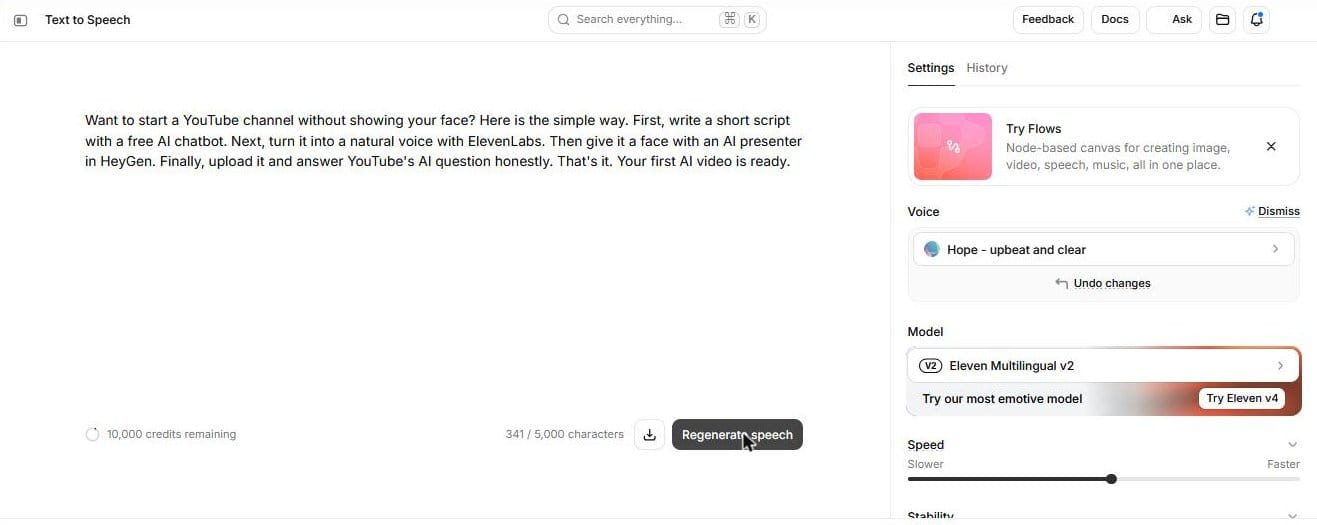
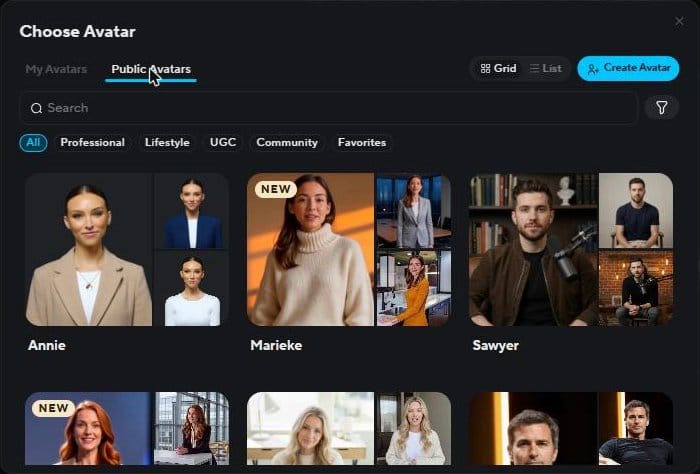
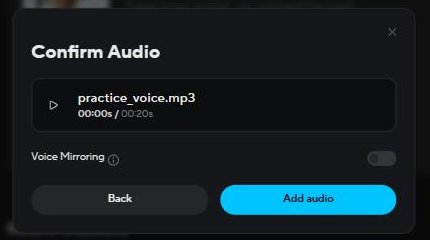
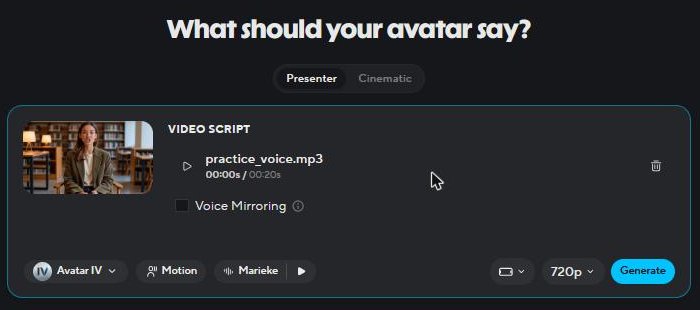
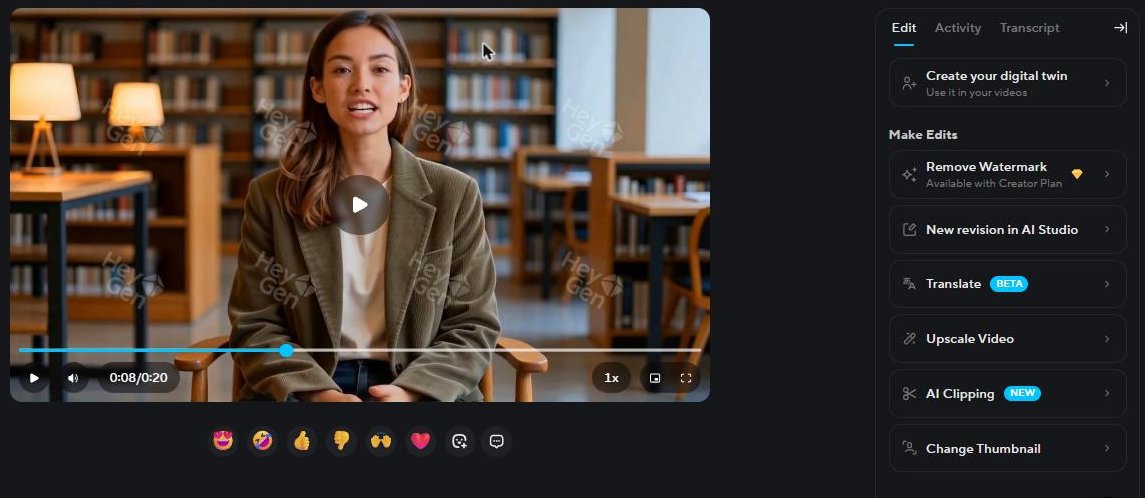
What it cost: $0. ElevenLabs used 341 characters of its free monthly credits, and HeyGen used 1 of its 3 free videos for the month. Honest limits: the free HeyGen video has a watermark (see step 5), and the ElevenLabs free plan has no commercial license. So for a monetized channel you need ElevenLabs Starter and HeyGen Creator.
Try the same path: ElevenLabs · HeyGen
Before you start: who this is for, and what you will have at the end
- For: beginners with a computer or phone, a Google account, and no editing skills.
- You will build: one 20 to 45 second AI Short (vertical), or a 1 to 3 minute story video (horizontal), uploaded with the right settings.
- Time (our estimate): 2 to 4 hours for the first video, because you learn each tool once. For comparison, Jack Craig says his first Short took a little over an hour of production after about 20 minutes of research. But he already knows the tools.
- Cost: $0 on the free path. However, the paid path starts at $6 a month (ElevenLabs Starter, regular price) and goes up from there. Details are in the upgrade table below.
The three tutorials we studied
First, we searched YouTube for this topic, kept videos from the last 12 months, and sorted them by views. Then we took the top English tutorials, with one video per creator. (Some Hindi tutorials had more views, but our readers read English.) Next, we read each transcript and the top comments. We did not copy their words or frames. Instead, the steps below are our own merge, checked against official pages.
| Video | Creator | Published | Views (seen 29 Oct 2026) | What it is best at |
|---|---|---|---|---|
| I BLEW UP a YouTube Channel in 7 Days with AI | Jack Craig | 21 Nov 2025 | 2,490,744 | Idea research, story shape, upload settings, reading analytics |
| How to Make Cartoon Videos with AI (Full Tutorial) | Roboverse | 5 Nov 2025 | 1,138,174 | A simple script template, consistent characters, voice settings |
| How to Make Full Cartoon Animation Stories With FREE AI (Step-by-Step) | Africa Amaze | 31 Jan 2026 | 807,553 | A fully free tool stack, camera angles, free music and sound |
Start with Jack Craig’s video. It is the only one of the three that shows the whole trip, from an empty channel to the upload screen and the numbers after. Watch it for the thinking, not the tools, because he never names his video generator.
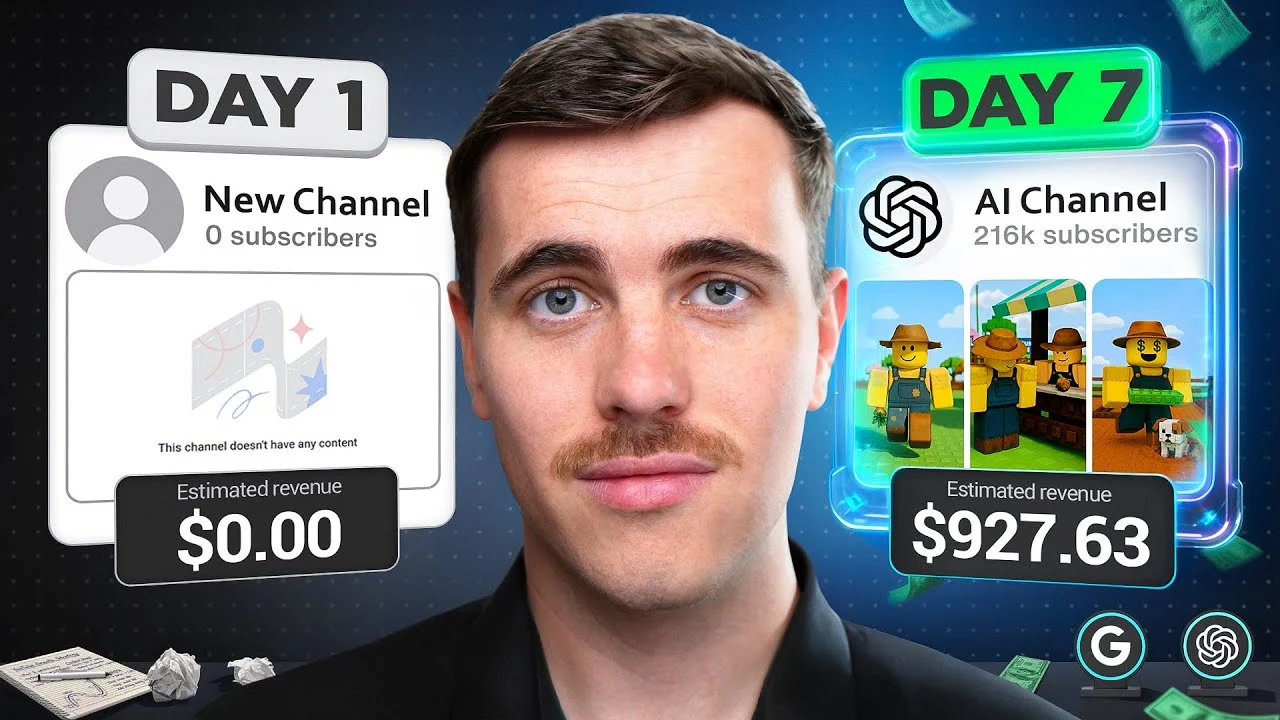
Video: “I BLEW UP a YouTube Channel in 7 Days with AI” by Jack Craig (YouTube). Linked with credit; all notes in this post are our own.
The blueprint: the whole process on one page
Here is our own map of the process. Each box is one stage. The left label is the free way, while the right label is the thing to watch. Stage 8 loops back to stage 2, because your second video should learn from your first one.
How to make AI videos for YouTube in 8 steps
This is the short version. After that, the roadmap and the long sections below explain each step, the traps, and the paid shortcut if you need one.
- Prepare your channel. Sign in with a Google account, create the channel, turn on 2-Step Verification, and decide: Shorts (vertical 9:16) or long videos (horizontal 16:9).
- Write the idea and script. Use a free chatbot to split one simple story into 5 to 10 scenes, each with one short narration line. Put a strong moment in the first 1 to 3 seconds.
- Create the images. Make one picture per scene in Google Flow or Gemini. Reuse the same character reference in every prompt so the hero looks the same.
- Add motion. Turn each image into a 5 to 10 second clip with Flow’s free daily credits, or use the “Create video” tool in the YouTube app for Shorts.
- Add voice, music and sound effects. Record your own voice or use a text-to-speech tool whose license allows YouTube use. Take music and effects from the YouTube Audio Library, filtered to “Attribution not required”.
- Edit. Put clips and audio on a CapCut timeline, cut each clip to 1 to 3 seconds for Shorts, add captions, and watch every frame for AI mistakes.
- Upload with the right settings. Add a clear title and description, set the audience (made for kids or not), and answer “AI use” in the Attributes section of YouTube Studio.
- Review and repeat. After a few days, check retention and swipe rate in YouTube Analytics, change one thing, and make the next video with a different story.
Our roadmap: stages, subtopics and practice tasks
Tap a stage to open it. Each one shows the subtopics, one practice task and a link to the full stage below. We merged them from the three videos, then corrected them with today’s official pages.
Start here: 8 stages. Stages 1, 2, 6 and 7 are needed for every video, but stages 3, 4 and 5 change with your format.
Stages 1 to 4: channel, script, pictures and motion
1Prepare the channelopen
Google account, channel name and handle, 2-Step Verification, format choice. Task: write your channel idea in one sentence: “Short animated stories about ___ for ___”.
- 🔑 Account and security: Turn on 2-Step Verification now, because YouTube asks for it later for monetization.
- 📐 Shorts or long form: Shorts: 9:16, under 1 minute is easiest. Long: 16:9, but it needs more scenes and voice.
2Idea and scriptopen
Study what works, then write scenes with narration. Task: write a 6-scene story with a hero, a problem and a payoff.
- 🔍 Research: First, write down what happens in each scene of 3 popular Shorts in your niche, plus their length and views.
- 📝 Scene script: One scene = one image + one 5 to 10 second line of narration.
3Imagesopen
One image per scene, same character every time. Task: create your hero, then use that image as a reference in 3 different scenes.
- 🧑 Character consistency: Use a reference image, and also the same short description in every prompt.
- 🎥 Angles: Close-up, wide shot, from behind: different angles make a story feel like a film.
4Motionopen
Image to video, one clip per scene. Task: animate 2 scenes inside Flow’s free daily credits.
- 🎞 Image to video: Describe only the movement and the camera instead of the character’s looks.
- 💰 Paid shortcut: Talking presenter: HeyGen. Script or blog to stock-footage video: Pictory.
Stages 5 to 8: voice, edit, upload and numbers
5Voice and soundopen
Narration, music, effects, with licenses you can use. Task: find 1 music track and 3 sound effects marked “Attribution not required”.
- 🎙 Narration: Your own voice is free and fully yours. AI voice: first check the plan’s license.
- 🎵 Music and effects: YouTube Audio Library tracks are safe on monetized videos.
6Editopen
Timeline, pacing, captions, export. Task: export a 30-second cut, then watch it twice: once with sound, once muted.
- ✂ Pacing: For Shorts, cut clips to 1 to 3 seconds, then add sound effects on each action.
- 👀 Quality check: Look especially for extra fingers, objects that change, wrong actions.
7Upload and YouTube rulesopen
Title, description, audience, AI disclosure, monetization policy. Task: read the “inauthentic content” examples once before your first upload.
- 🏷 AI use label: Realistic AI scenes or AI music: answer Yes.
- 💵 Monetization rules: Each video needs a different story or idea instead of a template.
8Review and repeatopen
Retention, swipe rate, comments. Task: write 3 lines after each video: what worked, what failed, one change.
Stage 1: Get the channel ready (the part all three videos skip)
Why: none of the three tutorials shows a beginner creating an account. Jack Craig rebrands an old channel, while the other two start inside the AI tools. Ten minutes here saves trouble later.
How (exact clicks):
- First, sign in to YouTube with your Google account. Click your profile picture, then Create a channel.
- Next, pick a handle without spaces. If your first choice is taken, add a short word to it (Jack Craig adds “real” at the end).
- Then turn on 2-Step Verification in your Google Account security settings. Because the YouTube Partner Program page lists it as a requirement, do it now.
- Finally, choose your format. Shorts are vertical (9:16), while long videos are horizontal (16:9). Roboverse also reminds viewers to set vertical images for Shorts; it is easy to forget and painful to fix later.
Account age, and when this stage is done
Where the videos differ: Jack Craig says your account should be at least 7 days old and have a watch history, or YouTube may treat it as spam. That is his experience, but we did not find this rule on YouTube’s help pages. In fact, a top comment on his video points out the clash with his own “start today” advice. Our fix: open the channel today, then make your first video during the week while you use YouTube normally. You lose nothing.
Done when: your channel has a name, handle, picture, and 2-Step Verification is on. Cost: $0. Time: about 15 minutes.
Decision point: if you already have a channel about another topic, think twice before you rebrand it. Jack Craig rebrands an old channel; you can do the same, but your old viewers may not like the new videos.
Mini exercise: finish this sentence, then put it in your channel description: “Short AI stories about ___, for people who like ___.”
Stage 2: Idea and script, where the views are really decided
A top comment on Jack Craig’s video says it well: the AI tools were not the strategy; the research, hooks and story were. We agree, because good pictures cannot save a boring story.
Research in 20 minutes
Jack Craig’s method, in our words: first, find three popular Shorts in your niche. Next, for each one, write what happens in every scene, how long each scene lasts, the title, and the views. Then ask a chatbot what they have in common. Also look at the comments. In his case, one Short had far more comments than usual, and the comments pointed to a story detail people loved. He then used that detail in his own video.
Common mistake: copying one channel exactly. Jack Craig warns against it, and YouTube’s monetization rules also do (see Stage 7). Borrow the pattern instead of the story.
Also be careful with games, films and brands you do not own. Jack Craig’s first test video is built around a popular game. Using another company’s characters is a copyright risk; we did not check the rules for that game, so make your own characters when you can.
Write the script in scenes
Roboverse gives the easiest method for a beginner. First, ask a chatbot (ChatGPT or Gemini, both have free versions) for a short story with one hero, one villain and a simple arc, split into 3 to 10 scenes. Each scene then gets a short description and a narration line of 7 to 10 seconds. Also, his full prompt templates are in his video description. A commenter asked for the prompts; that is where they are.
Jack Craig also adds one upgrade: a conflict in the middle. His shape is hook, rising action, conflict, comeback, payoff. The conflict makes the story less predictable.
| Video | How they write the story | Best for |
|---|---|---|
| Jack Craig | Research popular Shorts, then a story arc with a conflict and a comeback | Your 3rd video onward |
| Roboverse | Chatbot template: hero, villain, scenes with narration | Your first video (our pick) |
| Africa Amaze | Writes long, detailed scene prompts by hand; dialogue instead of narration | Film-style stories, later |
Done when: you have 5 to 10 scenes, each with one line of text, and the first scene has movement or surprise in the first 1 to 3 seconds. Cost: $0.
Mini exercise: give a chatbot this idea: “a small robot who is afraid of the dark”. Next, ask for 6 scenes with a conflict in scene 4. Then rewrite the hook yourself.
Want to earn from this one day? Read our honest list of realistic ways to make money with AI first. It explains why “easy money” claims in thumbnails are not a plan.
Stage 3: Pictures for every scene, with the same face each time
All three creators make images first and animate them later. This is the cheapest way, because a still image costs less (or nothing) and you can redo it fast.
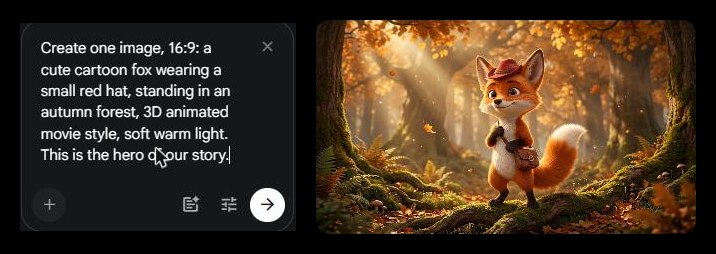
The free tool, and what changed since the videos
Africa Amaze used Google ImageFX for the first image and LM Arena for camera angles. However, both have moved. We checked on 29 Oct 2026: the old ImageFX address now redirects to Google Flow (flow.google.com), and lmarena.ai now redirects to arena.ai. A top comment on his video also reports the same change. As a result, in 2026 beginners can make images directly in Google Flow. Google’s Flow credits page says free users can still generate images even in the busy hours when free video generation may be blocked. But the page does not list an image price, so we do not claim one.
Other image options we have tested and written about: Nano Banana (Google’s image model, the one Africa Amaze liked best for his storyboard grid) and Leonardo AI for styled art.
Keeping the character the same
- Jack Craig: his first ChatGPT image was poor. He then edited the prompt and added reference images, and the result improved a lot. Lesson: never accept the first result.
- Roboverse: uses OpenArt’s “Characters” feature. You describe the character once, pick a style, and reuse it by name. It works well, but OpenArt is a paid tool he promotes, so it is not on our free path.
- Africa Amaze: asks for a 9-frame storyboard grid of one scene (close-ups, wide shot, from behind) in one prompt, then crops each frame. He says the AI “extract frame” trick sometimes changes the angle, so he crops by hand with the Windows photo editor and clicks Save as a copy so that the original stays safe.
Best for a beginner: make one clean picture of your hero, save it, then attach it as a reference in every new prompt. Also write the same short description each time (color, clothes, one special item). Then try the grid trick on your third or fourth video.
Common mistake: mixing up two characters in a prompt. Roboverse warns that if you swap the names, “things get weird”. That is why it helps to keep a small note: character 1 = squirrel, character 2 = fox.
Done when: every scene has one image, in the right shape (9:16 or 16:9), and the hero looks the same in all of them. Time: about 30 to 60 minutes the first time (our estimate).
Stage 4: Making the pictures move
This is where the free path has the most limits, so plan your credits first.
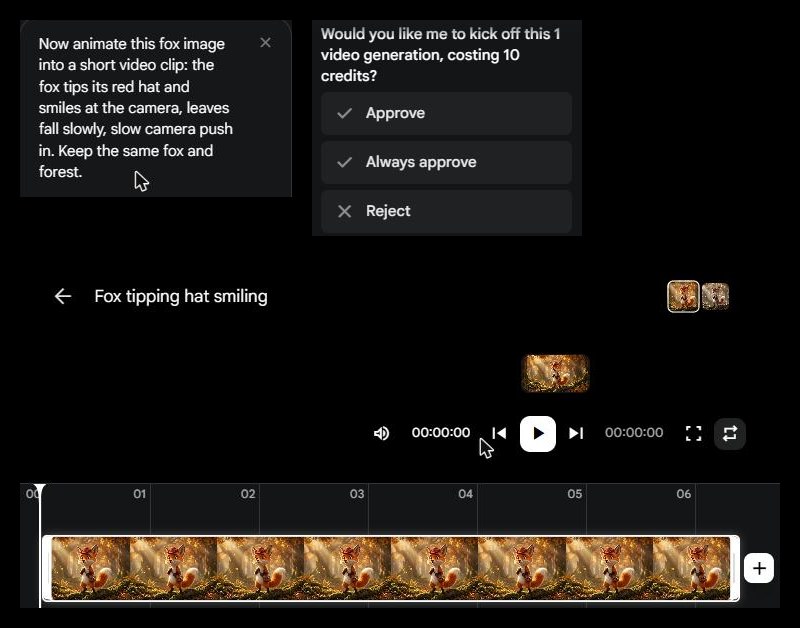
Free option A: Google Flow
Africa Amaze used Flow’s “Frames to video” mode: a start image (an empty scene) and an end image (the horses standing in it), so that the AI animates the horses walking in. He also kept the number of outputs at 1 to save free credits. Today’s official limits (checked 29 Oct 2026, Google Flow credits page):
- Free users get 50 Flow credits per day. Unused credits, however, do not roll over.
- For non-subscribers: Veo 3.1 Lite costs 10 credits, Veo 3.1 Fast costs 20 credits, Veo 3.1 Quality (8-second videos) costs 100 credits.
- Between about 2 PM and 5 PM UTC, free users may not be able to make videos. But images still work.
- 4K upscaling is limited to Ultra subscribers.
In short, a free day gives you a few short clips instead of a whole film. As a result, a 6-scene Short can take 2 or 3 days of free credits. Even so, that is fine for learning.
Free option B: YouTube’s own tools (Shorts only)
Inside the YouTube mobile app, tap Create, then the sparkle icon at the top right, then Create video. YouTube’s help page for AI features in Shorts says this makes clips up to 10 seconds from a text prompt (with up to 3 reference photos), and there is also Photo to video. However, these features need the device language set to English, and some are not available in the EEA, the UK or Switzerland. A nice detail: the tool also discloses the AI use for you automatically. But the help page does not state a price, so we do not say it is free forever.
What about Grok and Kling?
Africa Amaze made most clips in Grok’s “Imagine” tool, which was free when he filmed. However, a top comment under his video now says Grok video is no longer free. But we could not confirm this on xAI’s own pricing page today, so do not build your plan on it. Roboverse uses Kling 2.1 or 2.5 inside OpenArt, but that tool is paid. Jack Craig never names his generator. In fact, the most-liked question under his video asks how much he spent on it. No answer is given, so we cannot tell you.
Do not do this: Africa Amaze suggests opening another email account when you hit a daily cap. Making extra accounts to get around limits may break a tool’s terms and put your main account at risk. Wait for tomorrow’s credits instead.
When a paid tool is worth it
Two kinds of video do not fit the “image then motion” path well:
- A talking presenter (explainers, tips, news-style videos). An AI avatar tool is faster. For example, our HeyGen tutorial shows a full project. HeyGen’s free plan gives 3 watermarked videos a month, up to 1 minute each (checked 29 Oct 2026).
- Script or blog post to video with stock footage (faceless explainers). Pictory does this; read our Pictory review for the good and bad points. Pictory has a 14-day free trial instead of a free plan.
Not sure which type you need? Our guide to the types of AI video generators sorts them by job (avatar, text-to-video, stock-footage, editing).
Mini exercise: in one prompt, describe only the movement and the camera (“the robot walks toward the camera, slow push in”). Do not describe how the robot looks, because the image already shows that. Roboverse’s video-prompt template also follows the same rule.
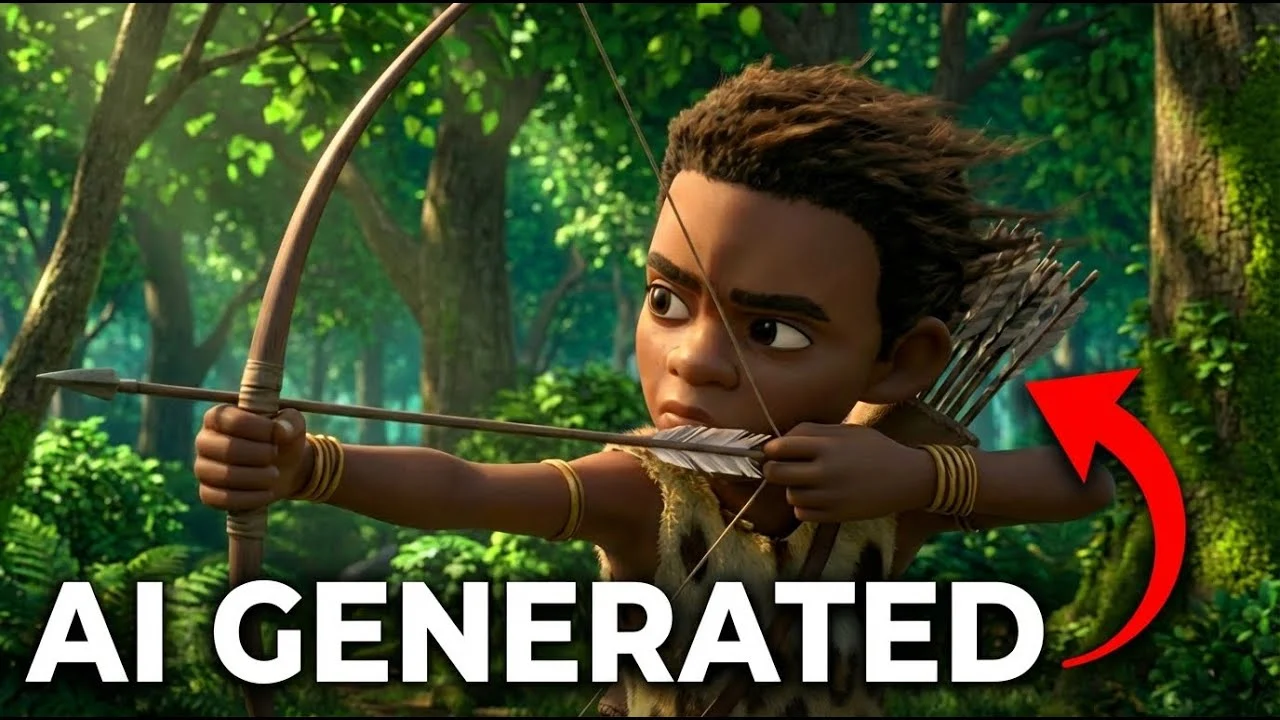
Video: “How to Make Full Cartoon Animation Stories With FREE AI (Step-by-Step)” by Africa Amaze. Some tools in it have changed (see Stage 3 and 4 above).
Stage 5: Voice, music and sound (and the license trap)
Sound makes AI clips feel alive. It is also where beginners break rules without knowing it.
Narration
Roboverse makes the narration with ElevenLabs inside OpenArt, and he also shares his settings: stability about 0.6, similarity 0.5, style exaggeration 0.1, speed 0.9 for a calm storyteller. He generates all lines at once, then cuts them later. That is a smart tip: end each sentence cleanly so that the AI leaves a pause you can cut.
The step all three skip: the license. ElevenLabs’ free plan gives 10,000 credits a month (about 10 minutes), checked on its official pricing page on 29 Oct 2026. But ElevenLabs’ own help page says the free plan has no commercial license and cannot be used for any commercial purpose, and free content must credit ElevenLabs (“elevenlabs.io” or “11.ai”) in the title. Of course, a monetized YouTube channel is commercial. So: free plan for practice, a paid plan (Starter is $6 a month at the regular price, and it adds the commercial license) once you plan to earn.
The free alternative is your own voice, because it costs nothing and you own it. YouTube’s help page also says cloning your own voice for voiceovers does not need an AI disclosure. For more voice options, see our ElevenLabs voice tutorial, the ElevenLabs vs Murf comparison and our list of voice cloning tools.
Dialogue (two characters talking)
Africa Amaze asks Gemini to write a fixed “voice description” for each character (age, tone, country for the accent) and pastes it before every line, so that the voice stays the same. He also keeps each line short and splits long speeches into parts, so the voice does not rush. But the generated clips came with background music he did not want, so he cleaned the dialogue in Adobe Podcast. We did not check Adobe Podcast’s free plan limits today, so we give no numbers.
Music and sound effects
Use the YouTube Audio Library (YouTube Studio, left menu, Audio Library, or youtube.com/audiolibrary). Africa Amaze, for example, only takes tracks that say “No attribution required”. YouTube’s Audio Library help page confirms the filters Attribution required and Attribution not required, and also says Partner Program creators can monetize videos that use Audio Library music and effects. If you choose a Creative Commons track, however, you must credit the artist in the description.
Making your own songs with AI? Read our Suno AI music guide, and also note that YouTube’s disclosure page lists AI-generated music as content that needs the AI label.
You are finished with this stage once you have narration (or dialogue), one music track and a few effects, and you know the license of each one. Cost: $0 on the free path.
Stage 6: Edit like a Short, not like a slideshow
Roboverse edits in CapCut. Africa Amaze used Adobe Premiere Pro (paid) and skipped the editing part because his video was already long. Jack Craig shows his timeline but not the app. For a beginner, CapCut is the simplest free start. Its pricing page (checked 29 Oct 2026) shows a free plan with “Basic editing tools” and free templates; Pro is listed at USD 11 a month or USD 71.99 a year, and CapCut says prices are “for reference only”. However, the page does not say anything about free exports or watermarks, so check before you rely on a feature.
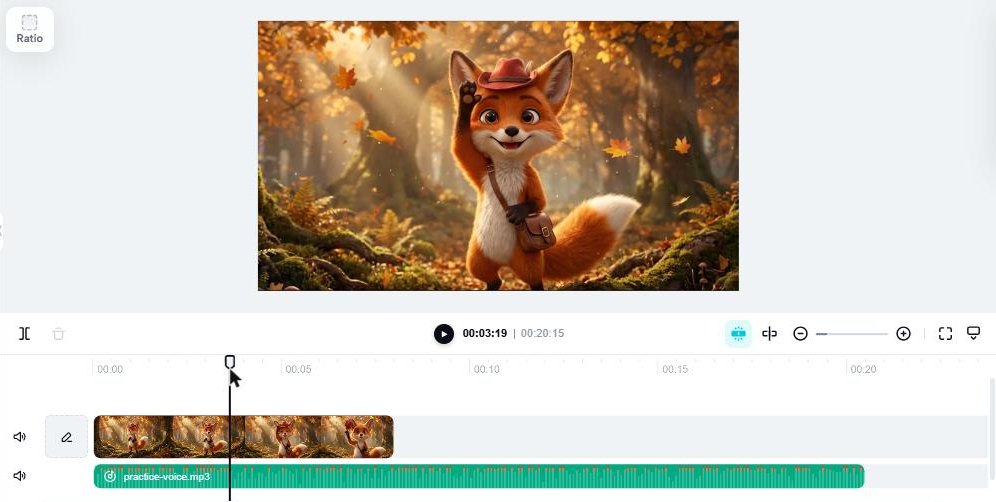
- First, create a new project in the right shape (9:16 for Shorts).
- Drag in your clips in scene order, then the narration, then music on a lower track.
- Next, cut clips to 1 to 3 seconds for Shorts. This is Jack Craig’s pacing tip.
- After that, add sound effects on every action (steps, door, whoosh).
- Add captions, because many people watch with the sound off.
- Finally, export it and watch it twice: with sound, then muted.
Error from the comments: under the Africa Amaze video, a viewer noticed a character “shot his bow instead of the arrow”. In fact, AI makes these mistakes all the time. Watch each clip slowly before you use it, then regenerate or cut bad frames.
Do not hide watermarks. Africa Amaze notes the Flow clip carried a watermark that his black film bars covered. But do not plan around that. Instead, if a free tool adds a watermark, accept it or upgrade.
The edit is ready once you have one exported file under 1 minute (Shorts) that you would watch to the end yourself.
Stage 7: Upload, and YouTube’s rules for AI content
Only Jack Craig shows an upload. He writes a simple title that says what happens (plus two emojis), repeats it in the description with #shorts, adds a few tags, sets “not made for kids”, and watches the Short once more before publishing. However, none of the three videos mentions YouTube’s AI disclosure. Here is what YouTube’s own pages say, checked 29 Oct 2026.
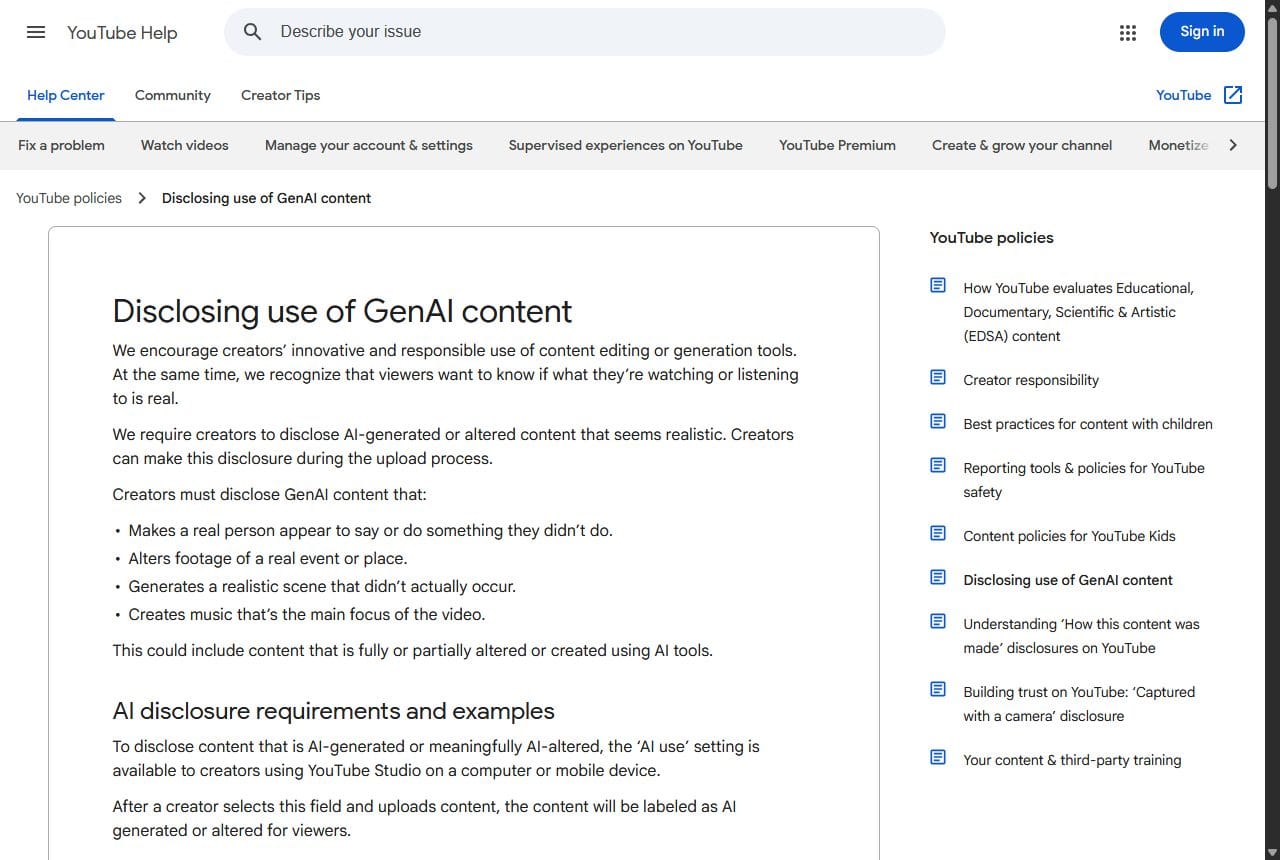
1. The “AI use” disclosure in YouTube Studio
Source: Disclosing use of GenAI content (YouTube Help).
- Where: during upload in YouTube Studio (computer or phone), in the Attributes section, under AI use, choose Yes or No. Older tutorials may call this “Altered content”, but the help page now uses “AI use”.
- Say Yes when realistic content was made or meaningfully changed with AI, for example a real person shown saying something they did not say, changed footage of a real event or place, a realistic scene that never happened, or AI-generated music.
- No disclosure needed for clearly unrealistic content (YouTube’s example: a rider on a unicorn), beauty or color filters, using AI for a script, outline, title or thumbnail, captions, upscaling, and cloning your own voice.
- Where the label shows: on the video player for AI music or photorealistic content, or in the expanded description for other cases.
- YouTube may add a label itself, for example for content made with YouTube’s AI tools or files with C2PA data. You then get a Studio notice.
- Penalty: creators who keep failing to disclose can face removal of content or suspension from the Partner Program.
- Good news: YouTube says disclosing AI content alone will not limit a video’s audience or its eligibility to earn money.
Our simple rule: a cute cartoon squirrel is clearly not real. A realistic storm hitting a real city, however, is. When in doubt, answer Yes, because it costs you nothing.
2. The “inauthentic content” monetization policy
Source: YouTube channel monetization policies. On 15 July 2025 YouTube renamed its “repetitious content” policy to inauthentic content and made clear it covers content that is repetitive or mass-produced. For example, it will not monetize:
- similar or repetitive content with low educational value;
- characters put in the same situation over and over with the same outcome;
- image slideshows, templated storylines, or scrolling text with little or no story;
- AI-generated content made with generic or unoriginal templates that gives the impression of mass production.
What is allowed: the same intro and outro is fine if the main part of each video is different, and a series is fine if each video has its own storyline or idea. The same page also has a separate reused content rule: no monetization for content copied from other sources without real changes or commentary.
What this means for you: the “one template, 100 videos a week” plan sold in some thumbnails is exactly what this policy describes. Jack Craig’s own lesson points the same way: after viewers complained his second story was too much, he advises keeping AI themes realistic, and he warns that gimmick AI niches fade fast.
3. Audience and monetization basics
- Made for kids: YouTube requires every creator, in every country, to say whether videos are made for kids, and also warns you not to rely on its systems to set this for you (YouTube Help). For example, cartoon stories for small children may be “made for kids”. Answer honestly.
- Partner Program: you need 1,000 subscribers plus either 4,000 valid public watch hours in the last 12 months or 10 million valid Shorts views in the last 90 days, 2-Step Verification, no active Community Guidelines strikes, and a linked AdSense account (YouTube Help).
Done when: the video is public, the audience is set, and you answered “AI use” honestly.
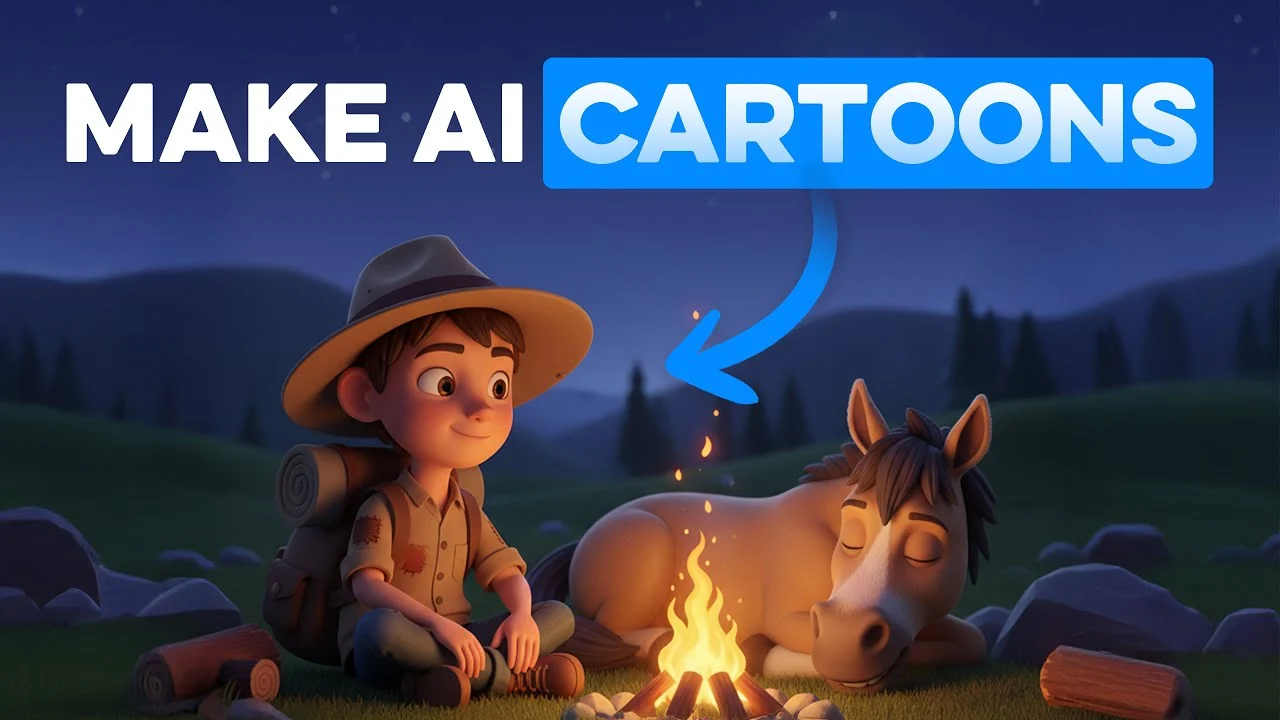
Video: “How to Make Cartoon Videos with AI (Full Tutorial)” by Roboverse. Good for the script template and voice settings; note the tool he uses (OpenArt) is paid.
Stage 8: Read the numbers, then make video two
Jack Craig spends most of his video here, and it is the most useful part for beginners. In YouTube Studio Analytics, he especially watches two numbers on Shorts:
- Swipe rate (in the Shorts feed, how many people stayed instead of swiping away). He says he aims for about 80%, and that a weak first upload is normal on a new channel.
- Average view duration compared with the video length.
He also uses his own upload rhythm for the first five uploads: wait at least 48 hours, and post again when the real-time views have stayed low for a while. However, this is his personal rule from his channels, not a YouTube rule. Therefore, treat it as one creator’s experience.
Two short lessons from the comments under his video match what we see: the first videos are practice, and the hook in the first 1 to 3 seconds matters most. That is why you should not judge your channel on video one.
Running a blog next to your channel? Google Search Console shows which searches bring people to your site, which is also a good source of video ideas.
Mini exercise: after 3 days, write three lines: one thing that worked, one that failed, one change for video two. Also, change only one thing at a time.
Paid upgrades: what they cost today, and when to switch
All prices below were checked on the official pricing pages on 29 Oct 2026, in USD. However, prices change, so check the page before you pay.
| Tool | Free option | First paid plan | Switch when… |
|---|---|---|---|
| ElevenLabs (AI voice) | 10k credits/month (about 10 min), no commercial license, attribution required | Starter: $6/month regular price (a first-month offer of about $1 was shown on the page). Creator: $22/month regular price. | You want to monetize videos with an AI voice |
| HeyGen (AI avatars) | 3 videos/month, watermarked, up to 1 minute each, no credit card | Creator: $29/month, or $24/month paid yearly | You want a talking presenter without filming yourself |
| Pictory (script to video) | 14-day trial: 3 videos up to 5 min, 720p, Pictory branding | Starter: $29/month, or $25/month billed yearly | You turn scripts or blog posts into stock-footage videos every week |
| CapCut (editing) | Free plan, basic editing tools | Pro: USD 11/month or 71.99/year (“for reference only”) | You need premium templates or AI features |
| Google Flow (images + Veo video) | 50 credits/day, no rollover | Google AI plans; we did not verify their prices today, so none are listed | Daily credits slow you down every week |
Sources: elevenlabs.io/pricing, heygen.com/pricing, pictory.ai/pricing, capcut.com/pricing, support.google.com/flow/answer/16526234. We could not load Canva’s pricing page today (it blocked our check), so Canva limits are left out.
Affiliate disclosure: the three buttons below are affiliate links. We may earn a commission if you buy, at no extra cost to you. Try each free plan or trial first. More on how we choose: recommended tools.
Try the ElevenLabs free plan
Make 3 free HeyGen videos
Start the Pictory trial
Decision points: skip what you do not need
- Only Shorts, phone only? Use the YouTube app’s Create video tool for clips and skip Flow in Stage 4. Then edit in CapCut mobile.
- Faceless explainer, not a story? Skip Stage 3 (images). Write the script, then use stock footage (Pictory trial) or your own screen recordings, plus your voice.
- Talking head without a camera? Skip Stages 3 and 4. Instead, use a HeyGen avatar, and remember the free plan is watermarked.
- Music channel? Stage 5 is your main stage, but AI music also needs the AI label (Stage 7).
- No plan to monetize yet? Free voices with attribution are fine for practice. But upgrade the voice license before you apply to the Partner Program.
One-page checklist
Prepare
- ☐ Channel created, handle without spaces, picture added
- ☐ 2-Step Verification on
- ☐ Format chosen: 9:16 Shorts or 16:9 long
Create
- ☐ 3 popular Shorts studied, scene by scene
- ☐ Script: 5 to 10 scenes, hook in 1 to 3 seconds, a conflict, a payoff
- ☐ One image per scene, same hero (reference image reused)
- ☐ Clips made within free credits (Flow: 50/day; Shorts: Create video up to 10 s)
- ☐ Voice: own voice, or a plan whose license allows YouTube use
- ☐ Music and effects from the Audio Library (“Attribution not required”, or credit given)
- ☐ Edited in CapCut: short cuts, captions, sound effects
- ☐ Every clip checked for AI mistakes; no watermark hidden
Publish
- ☐ Clear title, description (#shorts for Shorts), a few tags
- ☐ Audience set: made for kids or not
- ☐ Attributes, AI use: Yes or No, answered honestly
- ☐ Each video has its own story (inauthentic content policy)
Improve
- ☐ After 3 days: swipe rate and average view duration checked
- ☐ One change written down for the next video
FAQ
Can I really make AI videos for YouTube for free?
Yes, for learning and for your first videos. Google Flow gives free users 50 credits a day, the YouTube app has AI clip tools for Shorts, the YouTube Audio Library is free, and CapCut has a free plan. The limits are speed and quality. For a monetized channel, check every tool’s license, because some free plans, like ElevenLabs’ free plan, do not allow commercial use.
Do I have to tell YouTube my video is made with AI?
Only when it is realistic and could mislead viewers, for example a real person saying something they never said, a realistic event that never happened, or AI-generated music. You answer the “AI use” question in the Attributes section in YouTube Studio during upload. Clearly unrealistic cartoons, scripts written with AI and AI thumbnails do not need it. YouTube says disclosing alone does not limit reach or monetization.
Can AI videos be monetized on YouTube?
Yes, if they follow the channel monetization policies. YouTube’s inauthentic content policy blocks monetization of mass-produced or repetitive content, including AI content made with generic templates. Each video needs its own story, idea or value. You also need 1,000 subscribers plus 4,000 watch hours in 12 months or 10 million Shorts views in 90 days.
What is the easiest AI video to make for YouTube Shorts?
A 20 to 40 second animated story with one hero and 5 to 8 scenes. Make one image per scene, animate each one for a few seconds, add narration and sound effects, and cut fast. It is easier than a realistic video because you do not need to match real people or places.
Which paid AI video tool should a beginner buy first?
Often none at first. Pay when one free limit blocks you every week. If you want a talking presenter, HeyGen (Creator plan $29 a month, checked 29 Oct 2026). For scripts or blog posts turned into stock-footage videos, Pictory (Starter from $25 a month billed yearly). If you want an AI voice on a monetized channel, ElevenLabs Starter ($6 a month regular price) adds a commercial license.
What you have now, and where to go next
You now have the full free path: a channel that is ready, a scene-by-scene script method, images with a consistent hero, motion within free credits, licensed sound, a fast edit, and an upload that follows YouTube’s AI rules. In fact, that is more than any one of the three videos shows on its own. Make one video this week, but do not judge it by its views.
Next steps:
- Not sure which kind of AI video tool fits your channel? Read AI video generators: which type do you need.
- Thinking of faceless explainers? Our Pictory review covers what the trial lets you test.
- Want a presenter? Follow the HeyGen step-by-step tutorial.
- More video and audio tools: the Video and Media AI category.
Sources credited: Jack Craig, Roboverse and Africa Amaze on YouTube (videos embedded above). Prices and tool limits were checked on the official pages linked in each section on 29 Oct 2026. Tools change fast; if you see a difference, the official page wins.
📧 Get the next tested AI tool in your inbox
Free: every new guide we publish (AI video, voice, automation) plus one checked remote AI job each week. No spam, unsubscribe anytime.
Discover more from SoftHubTools
Subscribe to get the latest posts sent to your email.