
ClickUp for Small Teams: Complete Project Management Guide (2026)
Learn how ClickUp for small teams helps organize projects, manage tasks, and track progress using a clear, scalable workflow. This guide walks you through real project setup, visuals, best practices, and comparisons—step by step.
Small teams often struggle with scattered tools, unclear responsibilities, and lack of visibility. Tasks live in emails, spreadsheets, chat apps, and personal notes—making it difficult to stay aligned.
ClickUp for small teams solves this by bringing tasks, documentation, collaboration, and reporting into one workspace. Everything stays connected, visible, and easy to manage—even as projects grow.
This guide shows exactly how to use ClickUp in real scenarios, with videos, diagrams, screenshots, and proven workflows.
You may also like: how AI is transforming productivity for businesses .
ClickUp for Small Teams: Project Workflow Explained
How ClickUp for Small Teams _ClickUp Overview – Official Demo
ClickUp Project Workflow for Small Teams
Before creating tasks, it’s important to understand how projects flow inside ClickUp. This structure keeps work organized from idea to delivery.
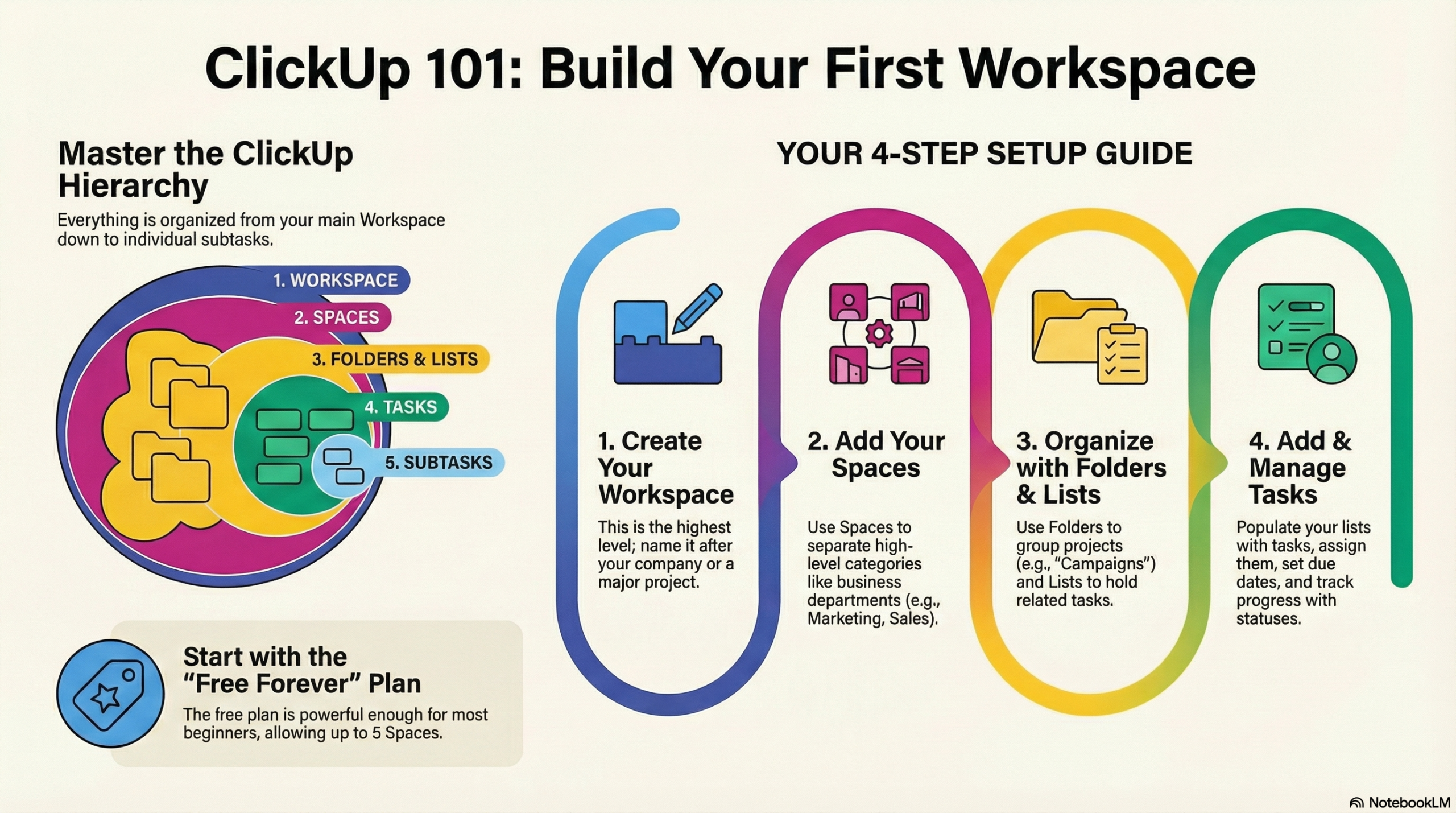
Each project follows a simple lifecycle: planning → task creation → execution → tracking → completion.
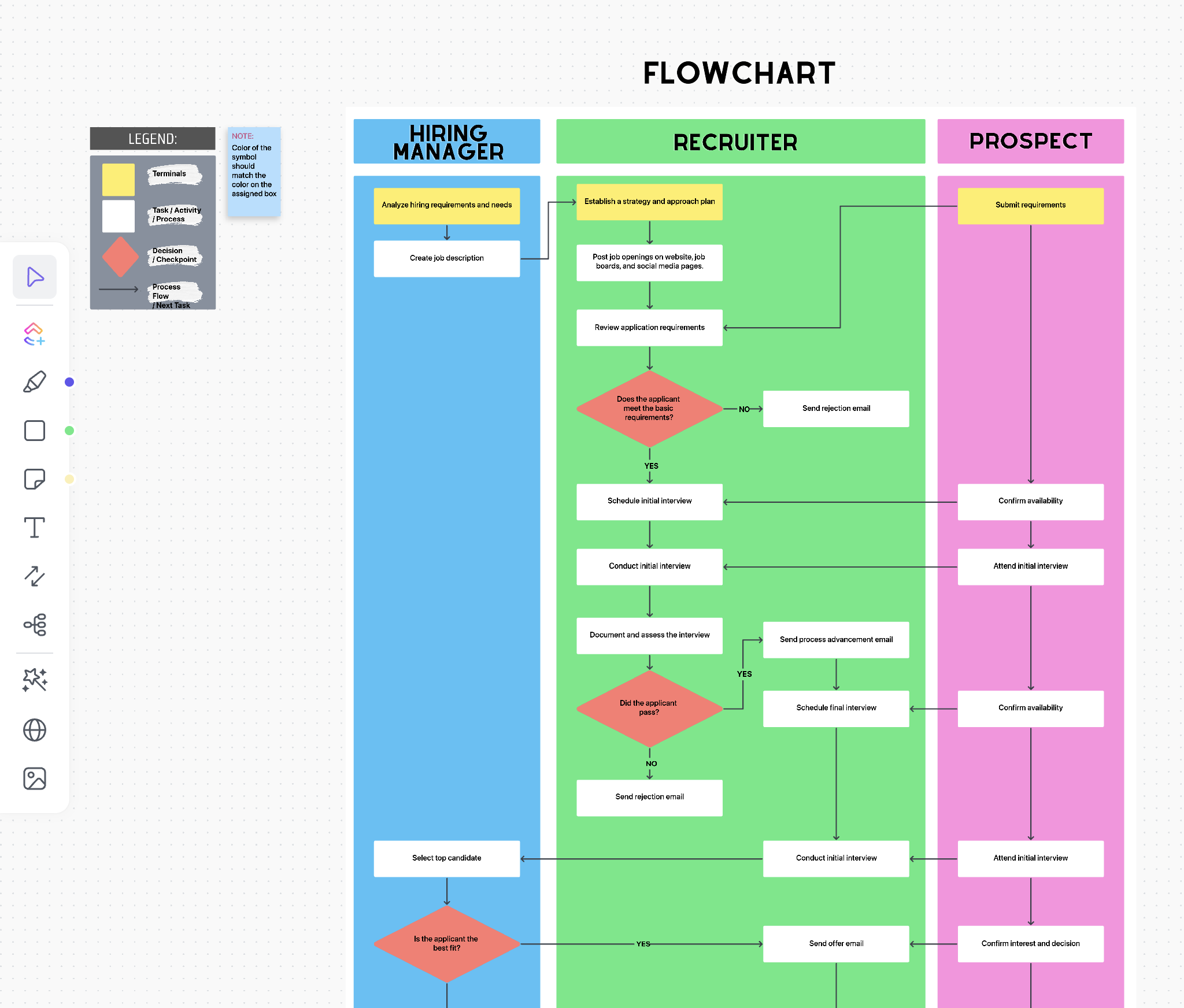
How ClickUp Organizes Work Internally
ClickUp connects hierarchy, tasks, views, templates, and dashboards into one system so teams don’t lose context.
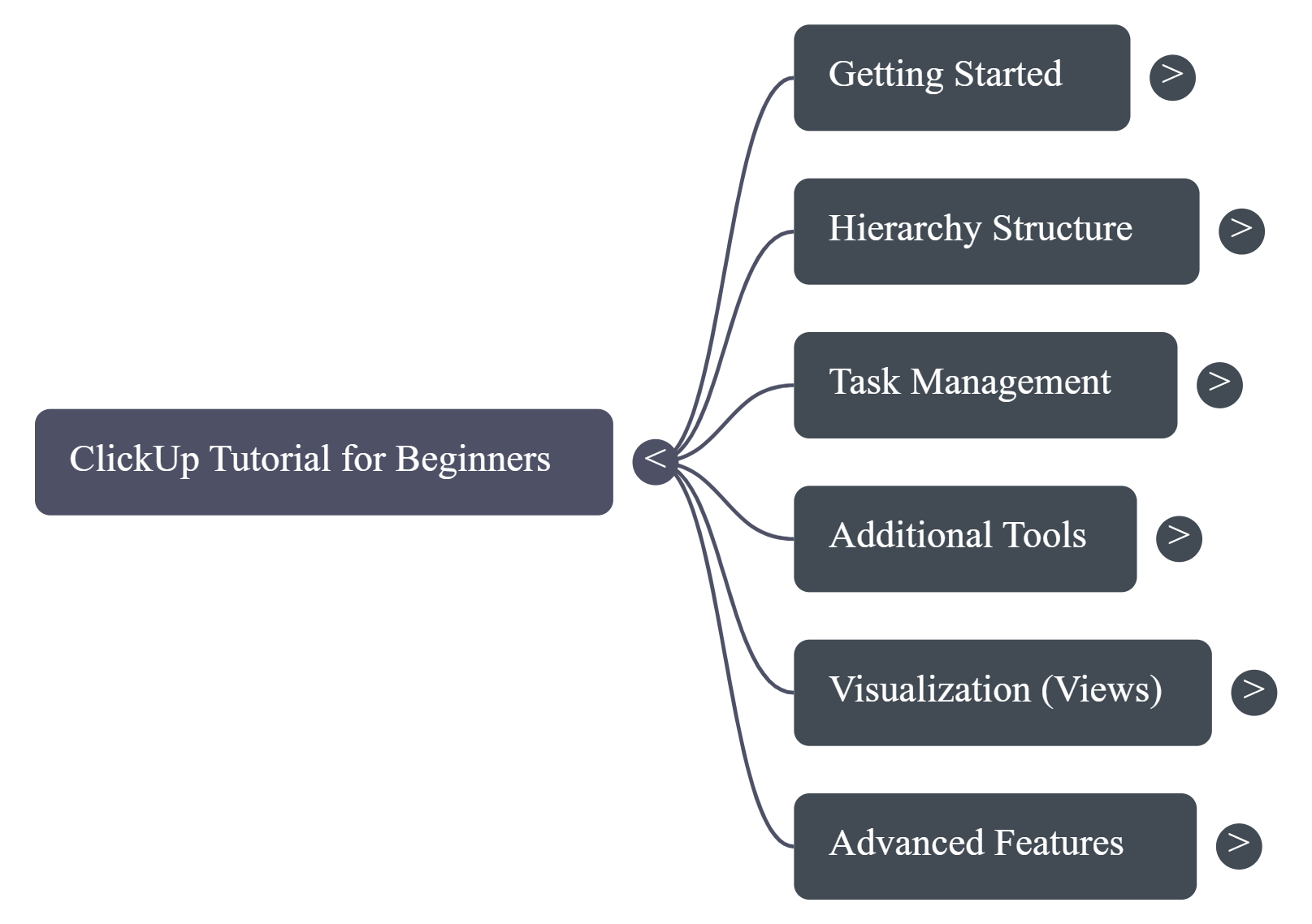
Key ClickUp Concepts Every Small Team Should Know
1. Hierarchy Keeps Work Structured
ClickUp uses a clear hierarchy: Workspace → Spaces → Lists → Tasks → Subtasks. This prevents chaos as projects grow.
2. Free Plan Is Enough for Most Teams
Most small teams can manage full workflows using the free plan, including tasks, views, Docs, and dashboards.
3. ClickUp Is a Knowledge Hub
Documents, comments, and files live directly next to tasks, keeping planning and execution connected.
4. Templates Save Time
Templates allow teams to reuse workflows instead of rebuilding projects from scratch.
5. Views Adapt to Work Styles
Board, List, and Calendar views allow each team member to work in the way they prefer.
6. Focus Tools Reduce Overload
Filters and Me Mode help individuals focus only on tasks assigned to them.
Step 1: Create Your Workspace and Spaces
The Workspace represents your company or team. Spaces divide work into major areas like Marketing, Client Projects, or Operations.
Step 2: Create Lists, Tasks, and Subtasks
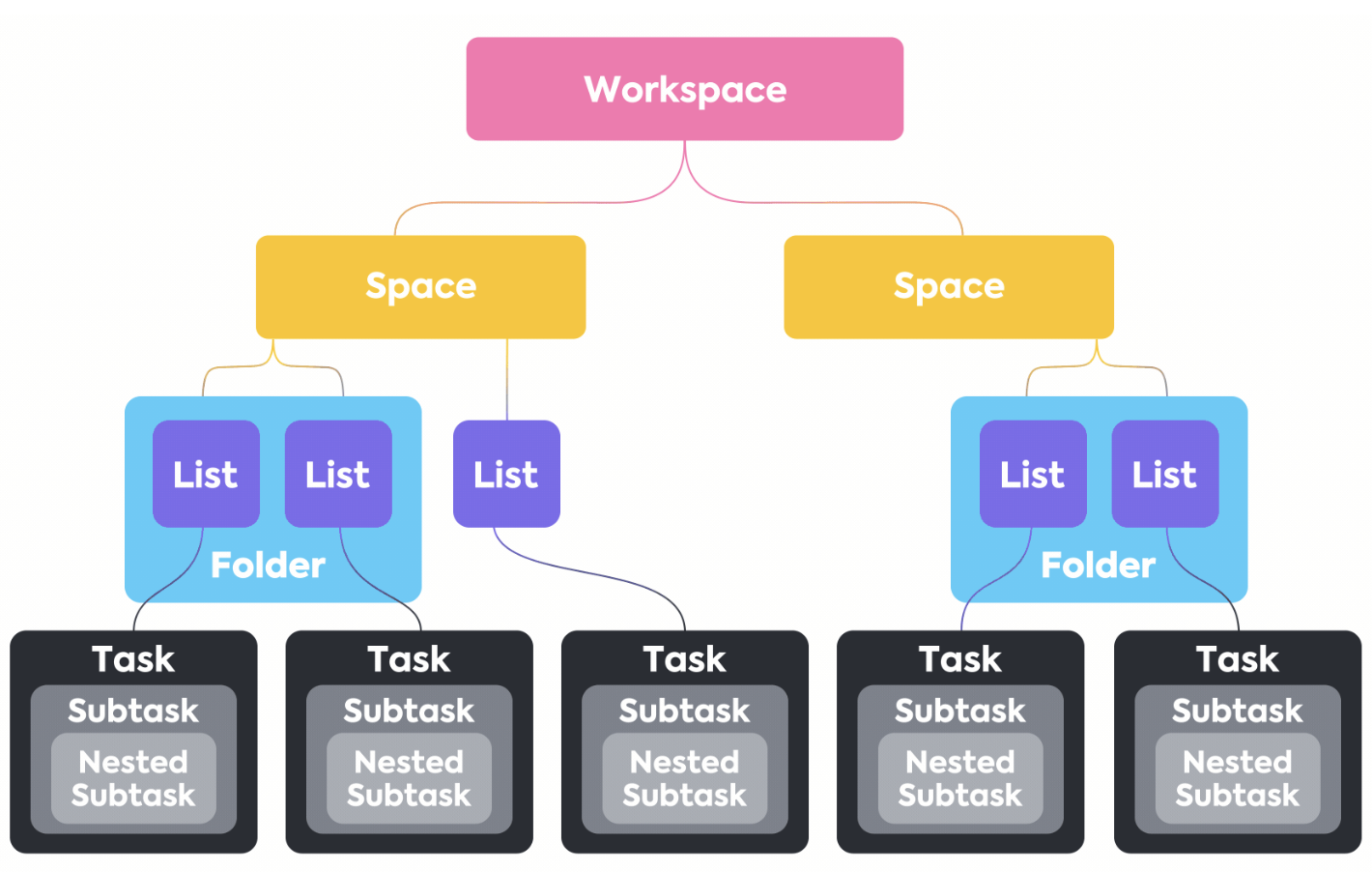
Lists represent projects. Tasks and subtasks represent actionable work with owners, deadlines, and priorities.
Step 3: Visualize Work Using Views
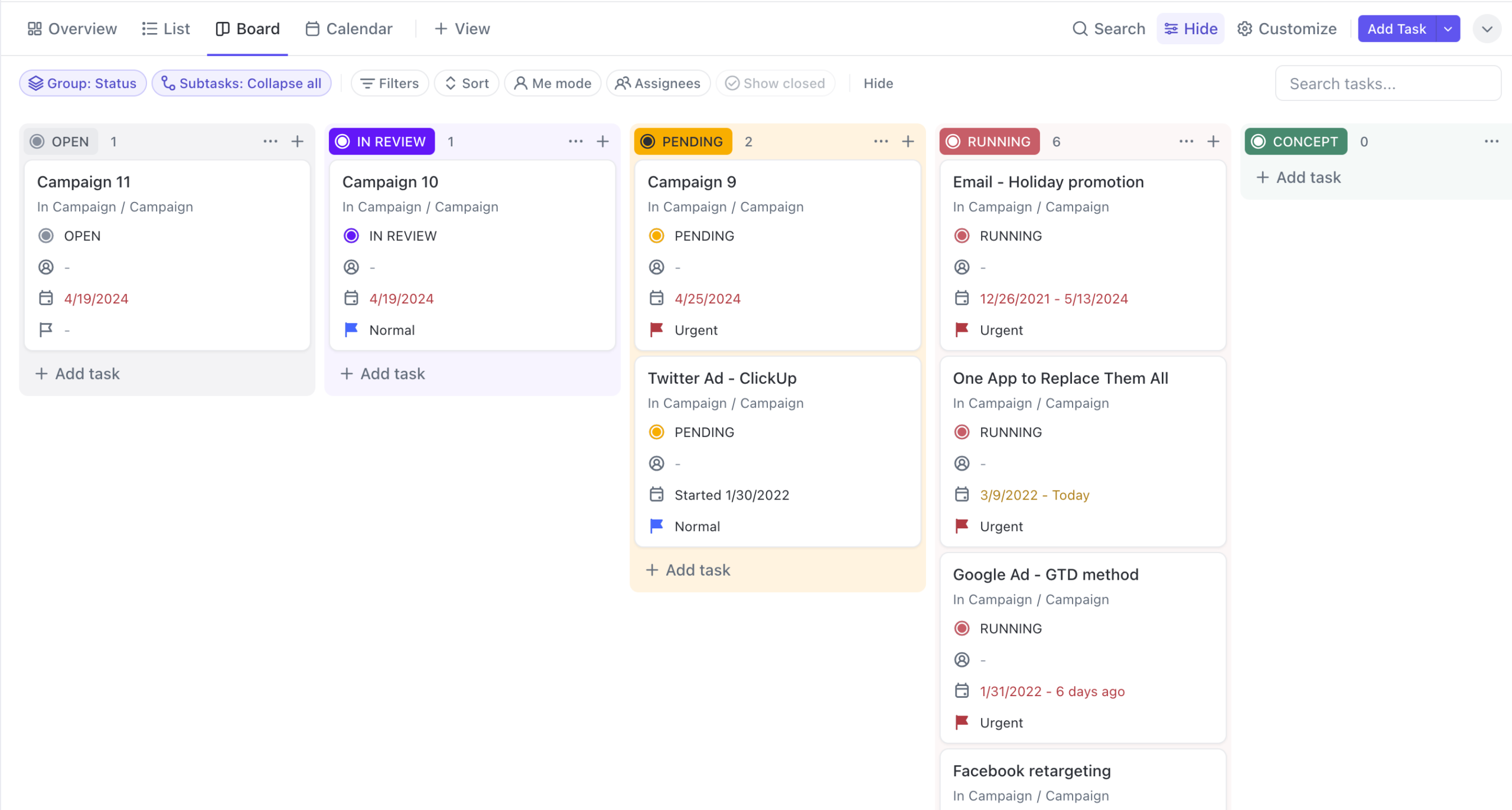
Board view works well for execution, while Calendar view helps plan deadlines.
Step 4: Track Progress with Dashboards
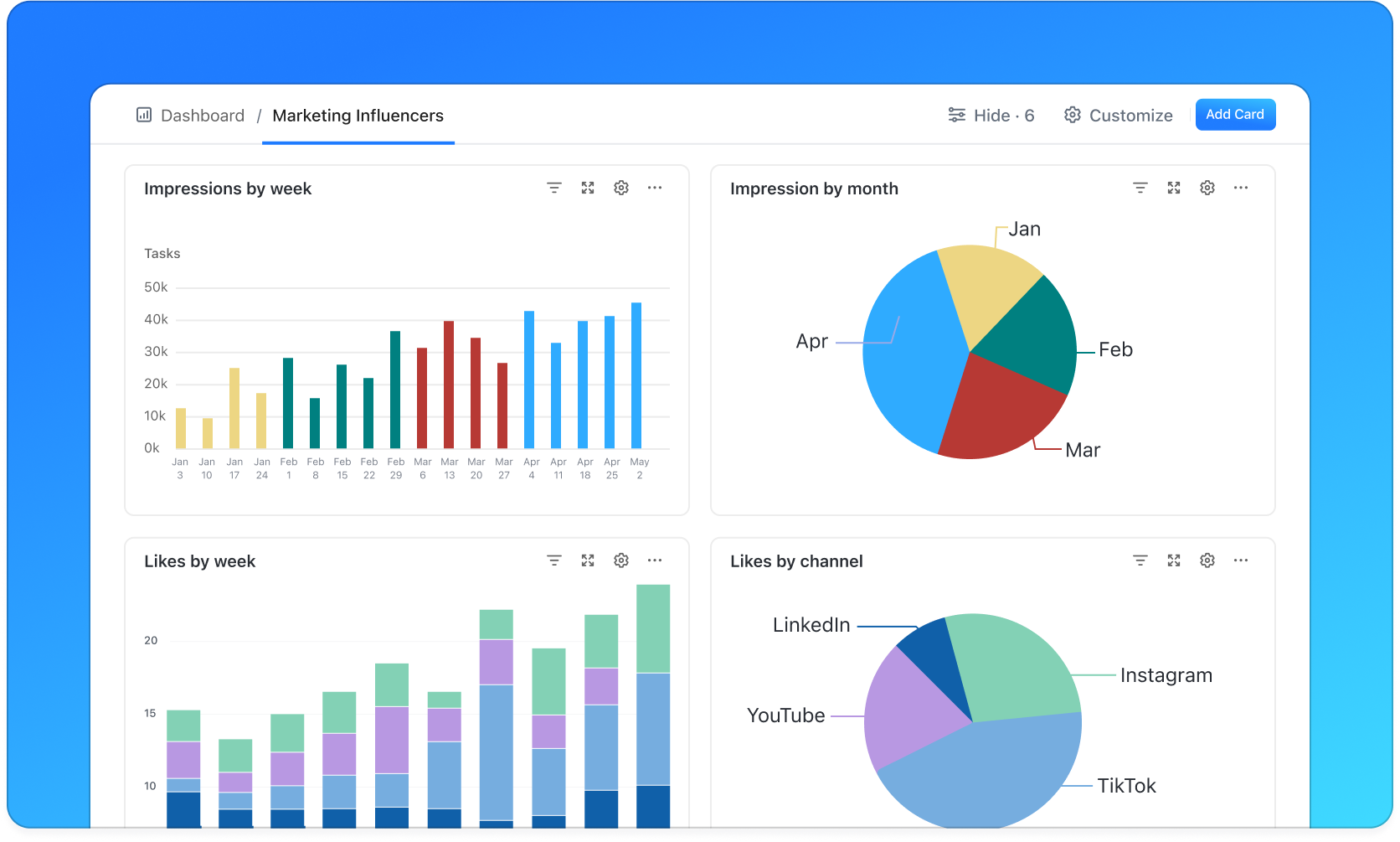
Dashboards provide real-time visibility into workload, progress, and team performance.
ClickUp vs Notion vs Jira (Quick Comparison)
- ClickUp: Best all-in-one tool for small teams
- Notion: Better for documentation than execution
- Jira: Powerful but complex for small teams
Final Verdict: Is ClickUp for Small Teams Worth It?
If you want a single platform to manage projects, collaborate, and scale without complexity, ClickUp is one of the best choices available for small teams.
Try ClickUp FreeDiscover more from SoftHubTools
Subscribe to get the latest posts sent to your email.